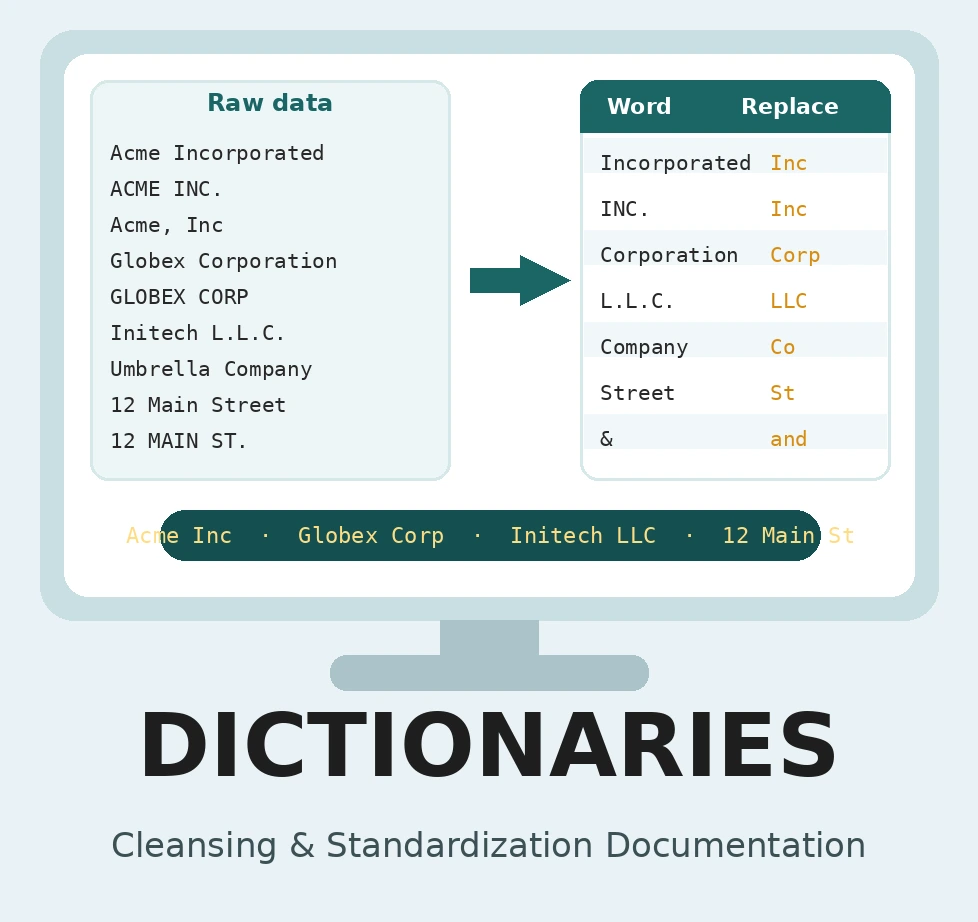
A dictionary is a simple lookup list: each entry pairs a word or phrase found in your data with what you want to do about it. Match Data Pro scans a column for every entry in the dictionary and, wherever it finds one, replaces it with a standardized value, deletes it, or records it in a new column. It is the fastest way to standardize the same handful of variations across thousands of records.
Typical uses:
Dictionaries live in the Cleansing & Standardization module under the Dictionaries tab. There are two ways to work with them: apply a dictionary you already have as a data source, or build one directly from the values in your data.
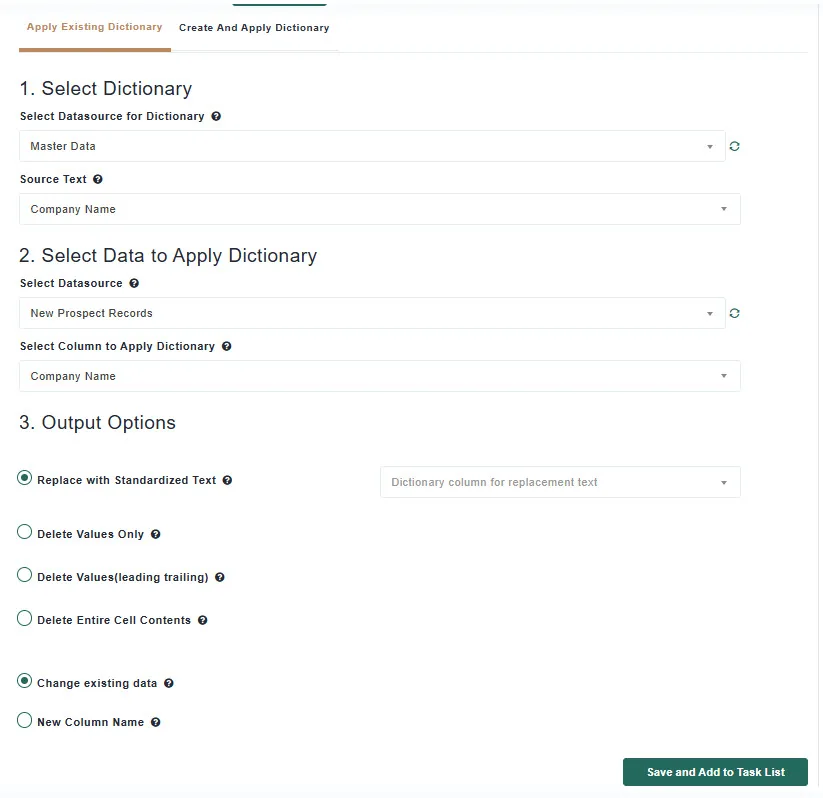
Use this option when your dictionary already exists as a data source in the project, for example a spreadsheet you imported with one column of original values and one column of standardized values.
Choose what happens when a source text is found (see Output Options Explained below). For Replace with Standardized Text, also pick the dictionary column that holds the replacement text. Then choose where the result goes:
Click Save and Add to Task List. The rule joins the module’s task list and runs with the rest of your cleansing tasks. Matching is case-insensitive.
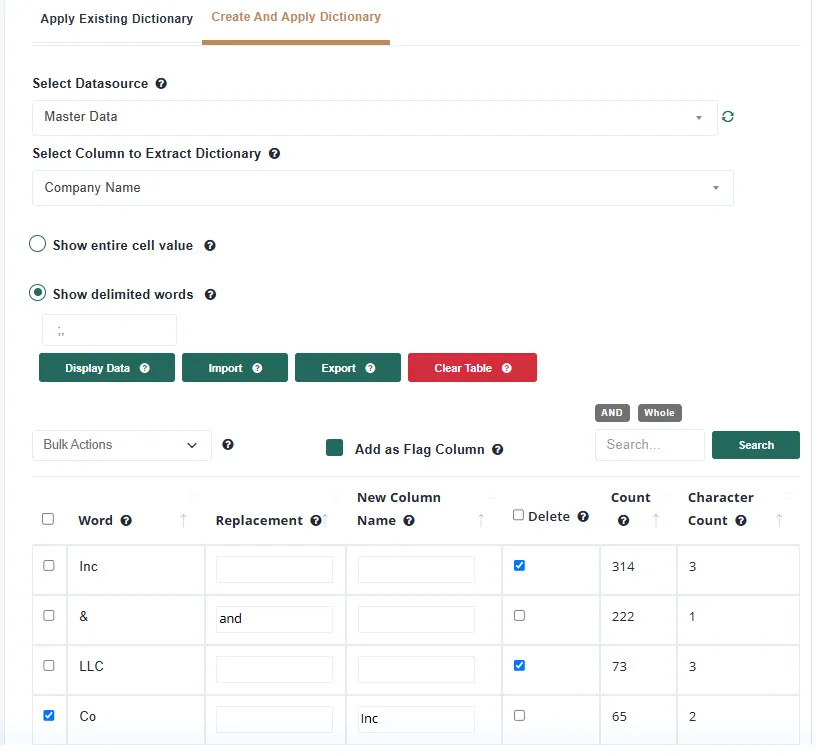
Use this option when you don’t have a dictionary yet. Match Data Pro reads the distinct values from a column, shows you how often each occurs, and lets you decide what to do with each one, all on one screen.
Each row has three controls:
Use Bulk Actions to apply one setting to many rows at once: tick the rows, then choose Replace With, New Column For, or Mark Delete and enter the value.
The search box filters the word list. The two badges next to it control both the search and how the rule matches when it runs:
Add as Flag Column works the same way as in Option 1: your original data is left alone and only the new columns are written. When it is on, every row that has a Replacement must also have a New Column Name.
Click Save and Add to Task List when you’re done. Only rows that have a Replacement, a New Column Name, or Delete ticked are saved.
These options appear in Option 1 and decide what happens to a cell when one of the dictionary words is found in it.
| Option | What it does | Example with dictionary word “Street” and standardized text “St” |
|---|---|---|
| Replace with Standardized Text | Replaces the word with the value from the dictionary’s standardized column. | “12 Main Street” becomes “12 Main St” |
| Delete Values Only | Removes the word and leaves the rest of the cell. | “12 Main Street” becomes “12 Main ” (note the trailing space) |
| Delete Values (leading trailing) | Removes the word together with the surrounding spaces, so no stray spaces are left behind. | “12 Main Street” becomes “12 Main” |
| Delete Entire Cell Contents | Empties any cell that contains the word. | “12 Main Street” becomes blank |
In Option 2 the same outcomes are set per row: fill in Replacement to replace, tick Delete to remove, and fill in New Column Name to write to a new column.
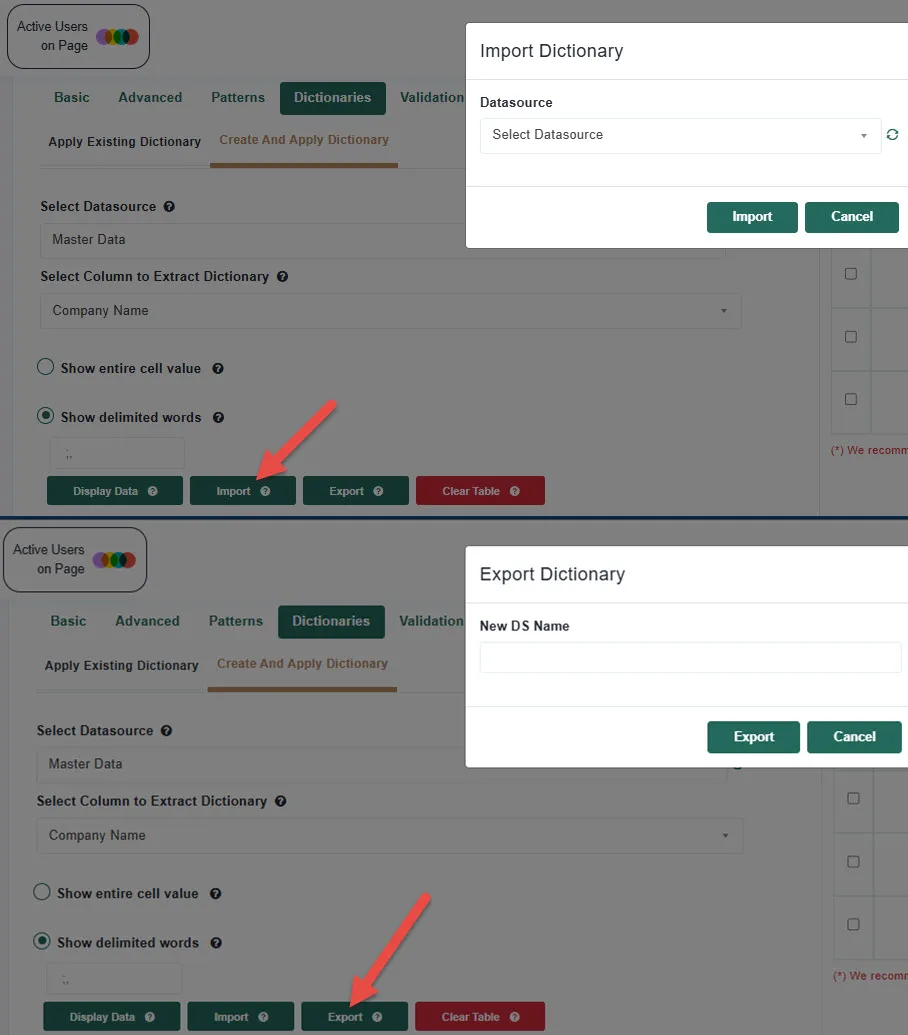
Option 1 applies a dictionary that already exists as a data source in your project. Option 2 builds a dictionary from the values in your data and applies it in one step. Anything you build in Option 2 can be exported as a data source and used later with Option 1.
No. “street”, “Street”, and “STREET” are all matched by the dictionary word “Street”.
Whole matches only complete values, or complete words when you use delimiters. Partial matches the text anywhere it appears, including inside other words. Whole is the default.
Only if you choose Change existing data, or set a Replacement or Delete without a flag or new column. Choose New Column Name, Create Flag Column, or Add as Flag Column to keep the original column intact.
Yes. Export it from Option 2 as a data source, then import that data source into the other project and apply it with Option 1, or use Import in Option 2.
An exported dictionary is a data source in the project, so anyone with access to the project can use it. Team members can also import it into their own projects.
No. Dictionary rules run with the rest of your cleansing tasks in the background, and you can keep working in Match Data Pro while they process.
At Match Data Pro, our core focus is fuzzy data matching and entity resolution but our platform goes far beyond that
Copyright 2026 Match Data Pro. All Rights Reserved