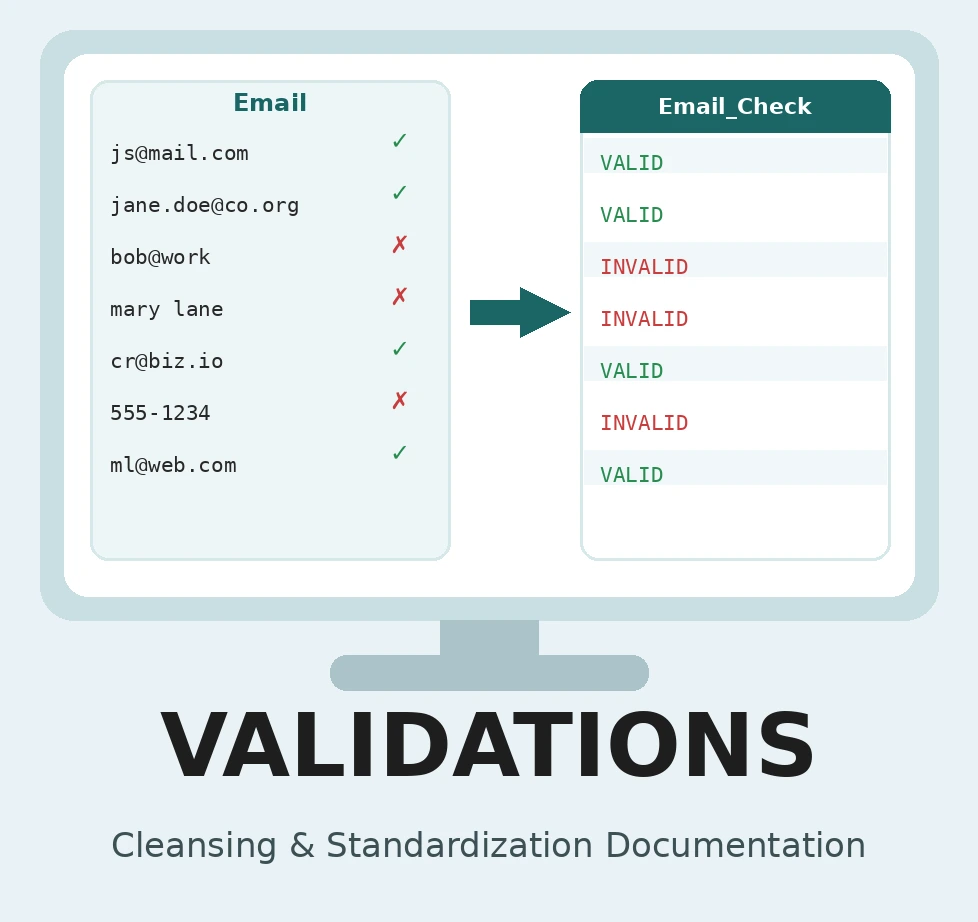
Validations check whether the values in a column meet a rule, then let you decide what to write for the values that pass and the values that fail. Use them to find bad email addresses, phone numbers with the wrong number of digits, dates outside an expected range, out-of-range numbers, or values that aren’t on an approved list.
A validation never overwrites your original column. It writes its result to a new column placed right next to the one it checked, so the original stays available for comparison. Common patterns are:
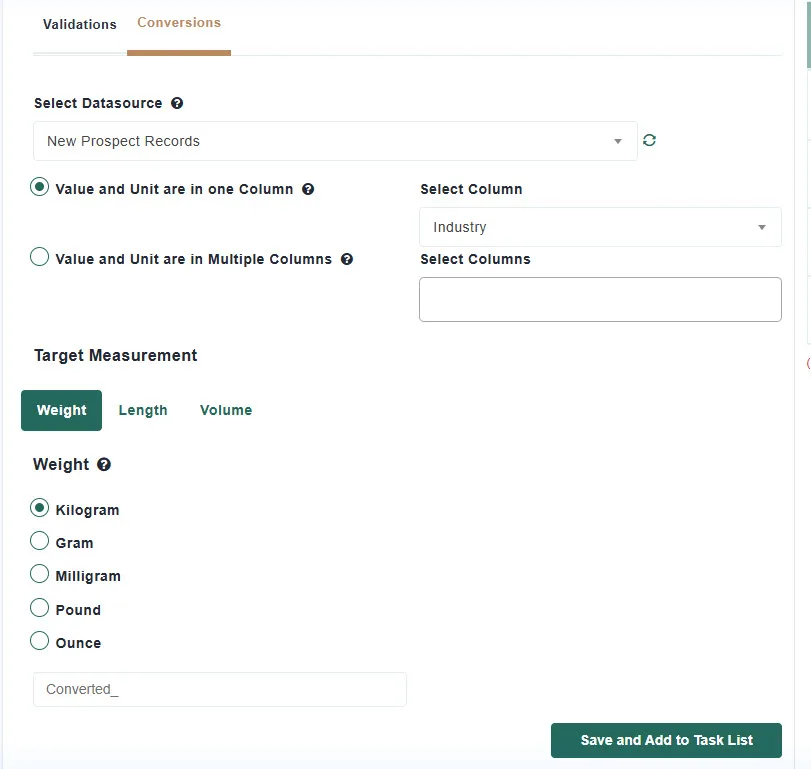
The Validation tab has two sub-tabs: Validations, covered first, and Conversions, which converts weights, lengths, and volumes between units and is covered further down.
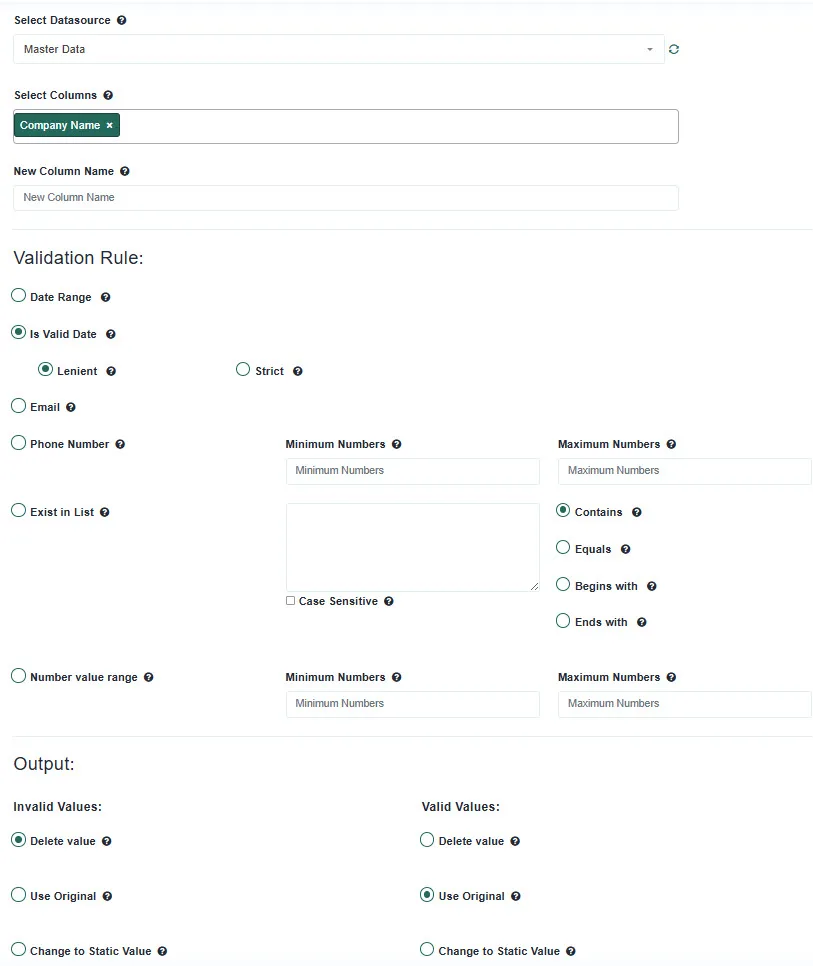
| Rule | What passes | Settings |
|---|---|---|
| Date Range | Values that are dates and fall between From Date and To Date, inclusive. | From Date, To Date. Day First / Month First tells Match Data Pro how to read ambiguous dates such as 03/04/2025. |
| Is Valid Date | Values that can be read as a date, in any common format. | Lenient (default) accepts a value as long as a date can be found in it. Strict requires the whole value to be a date with no extra characters. |
| Values shaped like an email address: something@domain.tld. | None. | |
| Phone Number | Values whose digits, after removing spaces, dashes, and punctuation, fall between Minimum Numbers and Maximum Numbers, with a digit count in the same range. | Minimum Numbers, Maximum Numbers. For 10-digit US numbers enter 1000000000 and 9999999999. |
| Exist in List | Values that match an entry in a list you type, one entry per line. | Contains, Equals, Begins with, Ends with decide how a value is compared to the list entries. Case Sensitive is off by default, so “Active” and “ACTIVE” both match “active”. |
| Number value range | Numeric values between the minimum and maximum, inclusive. Non-numeric values fail. | Minimum Numbers, Maximum Numbers. |
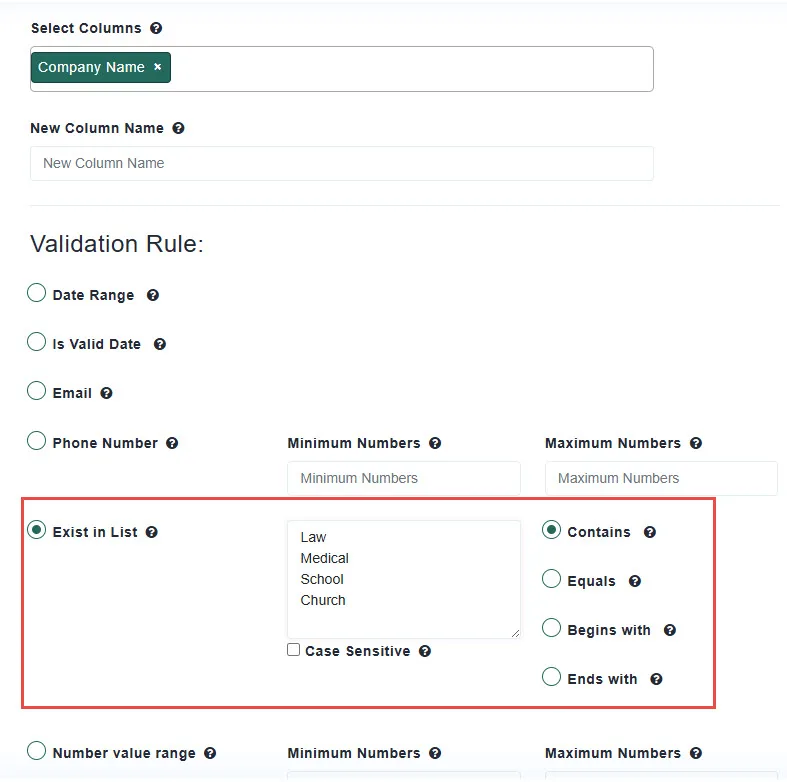
The Output section has two identical sets of choices, one for Invalid Values and one for Valid Values:
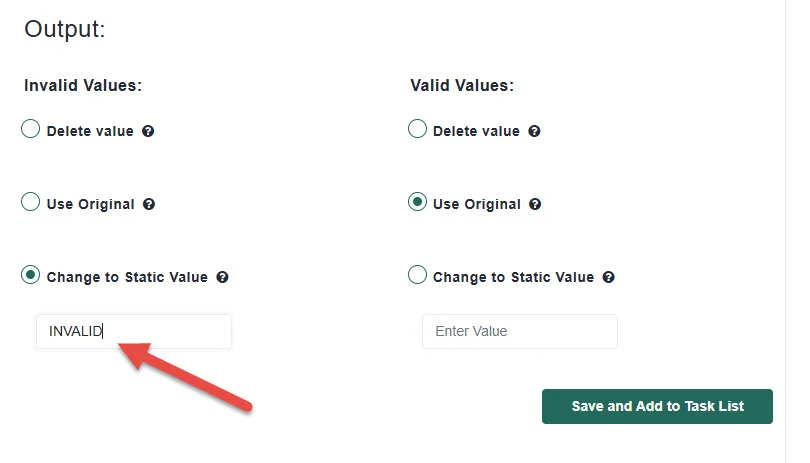
Because the two sets are independent you can build any combination. Set Invalid to Delete value and Valid to Use Original for a cleaned copy. Set Invalid to Change to Static Value: INVALID and Valid to Change to Static Value: VALID for a flag column. Set Valid to Delete value and Invalid to Use Original to isolate the problem values.
The Conversions sub-tab converts measurements into a different unit and writes the result to a new column.
Conversions do not read a unit from your data. Every value in the column is assumed to be in one fixed unit, which depends on the target you pick:
| Measurement | Target unit you pick | Your values must be in |
|---|---|---|
| Weight | Kilogram | grams |
| Weight | Gram, Milligram, Pound, Ounce | kilograms |
| Length | Kilometer | meters |
| Length | Meter, Millimeter, Mile, Foot, Yard | kilometers |
| Volume | Litre | milliliters |
| Volume | Milliliter, Gallon, Ounce, Cup | litres |
If your data is in a different unit, convert it in two steps, or use an Advanced mathematical rule to multiply by the factor you need.
No. The result always goes to the new column you name, inserted next to the original.
Yes. Select multiple columns and give one new column name per column, comma-separated, in the same order.
All non-digit characters are removed first, so (302) 450-1978 and 302.450.1978 are both read as 3024501978. The digits must fall within the minimum and maximum you enter and have a digit count within the same range.
Not unless you tick Case Sensitive. By default values and list entries are compared in lower case, with surrounding spaces ignored.
A blank cell fails every rule except Is Valid Date, which treats a blank as valid. Choose the Invalid output to control what is written for it.
To a new column with the name you define. The source column is not changed.
At Match Data Pro, our core focus is fuzzy data matching and entity resolution but our platform goes far beyond that
Copyright 2026 Match Data Pro. All Rights Reserved