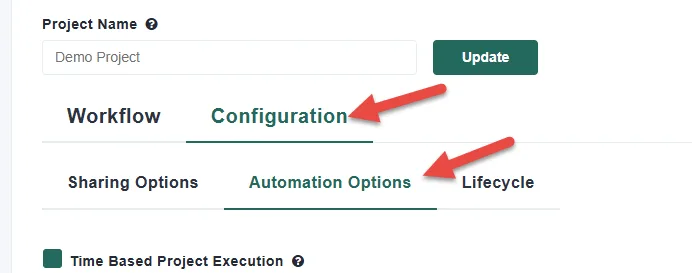
Match Data Pro allows you to automate the execution of pre-configured projects using built-in automation triggers. To access these settings, navigate to the Configuration tab and open the Automation Options panel within your project.
There are two types of automation triggers available: time-based and API-based. Each is designed for a different use case, and both are covered in the sections below.
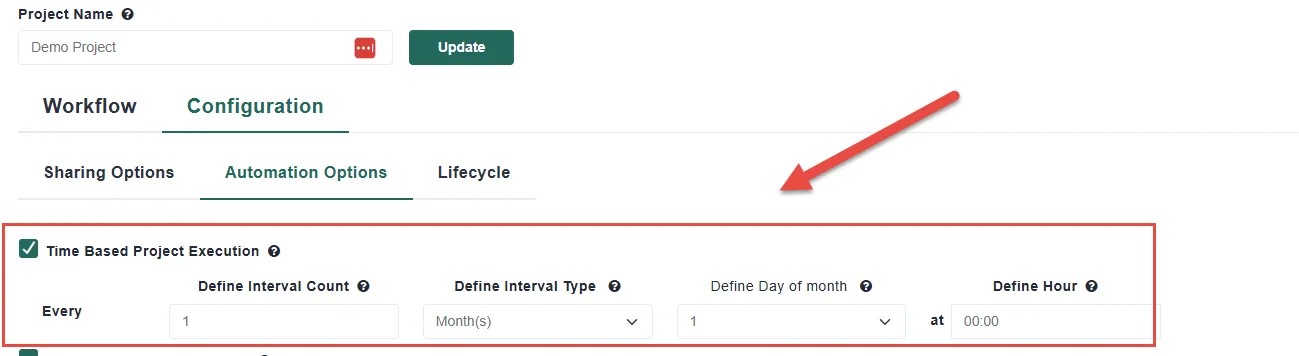
Time-based automation allows you to execute a project automatically on a recurring schedule. You can configure the interval in months, weeks, days, or hours. When you select an interval type, additional configuration options will appear to the right, allowing you to define the exact schedule for your project.
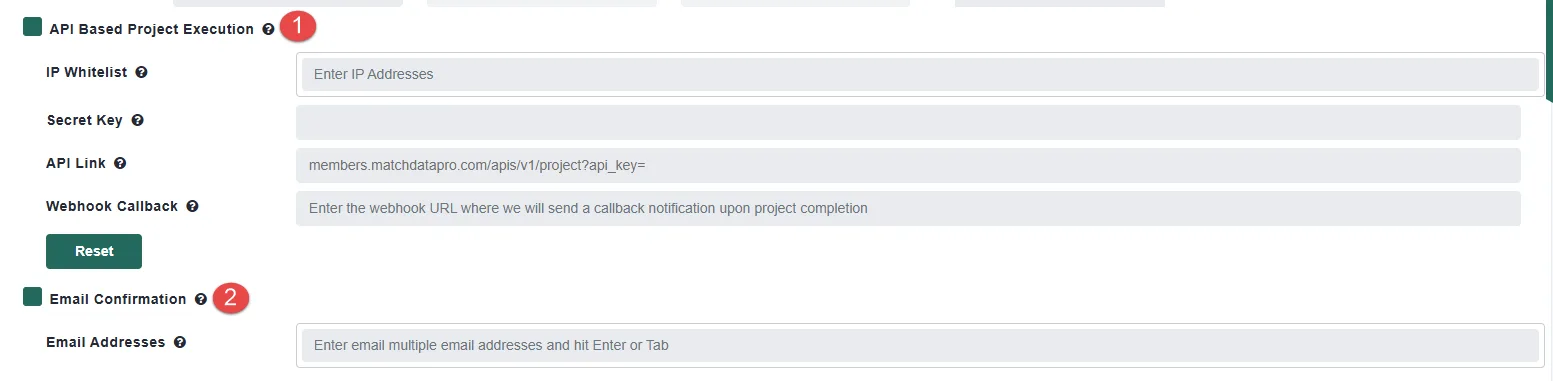
API-based automation allows an external application or script to trigger a project run programmatically.
To set this up, begin by defining an IP address — this is required in order for the system to accept incoming requests. Once you click the Reset button, a unique URL will be generated with a unique key at the end. You can trigger a project run by making a standard HTTP request to this URL, or via a cURL command from the command line.
Because projects can take several minutes to complete, the system returns an immediate 200 OK response to confirm the request was received. If your application requires confirmation that the project has fully completed, you have two options:
An endpoint is also available if you prefer to poll for completion status. Contact support to have this provided to you.
Within the project workflow, there is an Automation column that lets you control exactly which parts of your project execute during an automation run.
At the module level, you can check or uncheck the automation checkbox next to any module. If a module is unchecked, it will be skipped entirely when automation is triggered.
At the data source level, you can go even further. For example, within a Profiling module, you can expand the results and enable or disable automation for individual data sources — giving you fine-grained control without having to disable an entire module.
The same approach applies to data imports. Rather than refreshing all imports on every run, you can selectively enable or disable individual imports to suit your workflow.
Beyond scheduled and API-based triggers, you can also trigger a project manually using the Run Project button within the project itself. Alternatively, from the main project list, you can access the Run Project option through the three-dot menu next to any project.
To review past runs, the Automation History section logs every automation event. You can select a specific run to inspect its details and confirm what was executed.
At Match Data Pro, our core focus is fuzzy data matching and entity resolution but our platform goes far beyond that
Copyright 2026 Match Data Pro. All Rights Reserved