
Deploy Match Data Pro securely on your own Windows Server. This step-by-step guide shows you how to set up the On-Prem version using either native Windows or the recommended Windows Subsystem for Linux (WSL) environment.
Whether you’re a system admin, analyst, or data engineer, this guide ensures a smooth install with full control over your data.
 Prerequisites
 Prerequisites
Before installing Match Data Pro, please ensure the following:
- Windows 10/11 and Server 2022 datacenter or higher
- Admin access (to install services and run PowerShell)
- Internet access (for activation and package download)
- Enable firewall INGRESS traffic on ports TCP 8080 and 8085. EGRESS trafiic should be without limitations.
- Configure Windows IIS to WSL port 8080 (Not included in this tutorial)
 Windows 10/11 and Server 2022 datacenter or higher
1. Enable Windows Subsystem for Linux (WSL2) & Install MDP
We recommend installing Match Data Pro within WSL, which provides smoother compatibility with Linux-native dependencies and packages
Step A: Install WSL on Windows Server
 Step A: Install WSL on Windows Server
- To install WSL2, simply open PowerShell as Administrator and run:
wsl --install
- Once the WSL installation has concluded you must restart Windows.
- After reboot, set your default WSL distro to WSL2 by executing the following command..
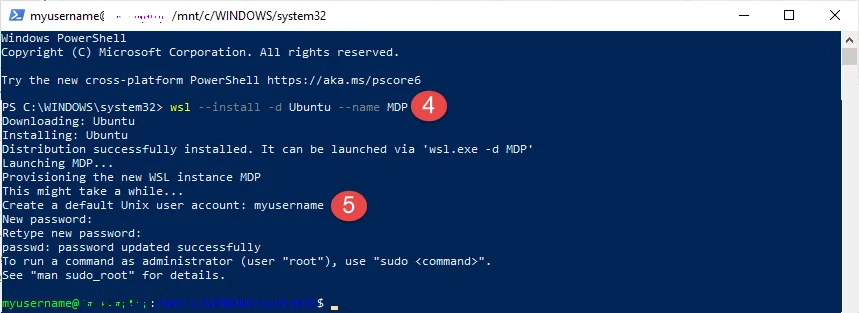
- Next you can install Ubuntu using the following command
wsl --install -d Ubuntu-24.04 --name MDP
- Once this finishes, you will be prompted to create a username and password. This is the Linux root password.

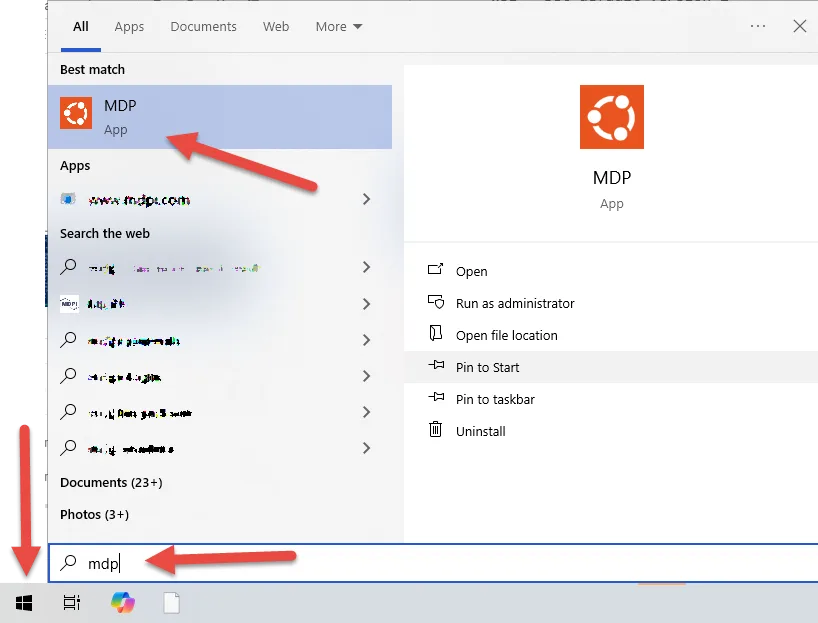
- You may now close the powershell and open Ubuntu by clicking the Windows Start button, typing MDP and select the App that comes up.
Step B: Install Match Data Pro
- When the MDP Ubuntu Window Opens Copy the auth.json file (we will send this to you) to the hope folder with this command:
sudo cp /mnt/c/Users/<YourUser>/Documents/auth.json /home/- This command assumes that you downloaded the auth.json file to the user’s Documents folder
- Replace <YourUser> with your actual user name in Windows.
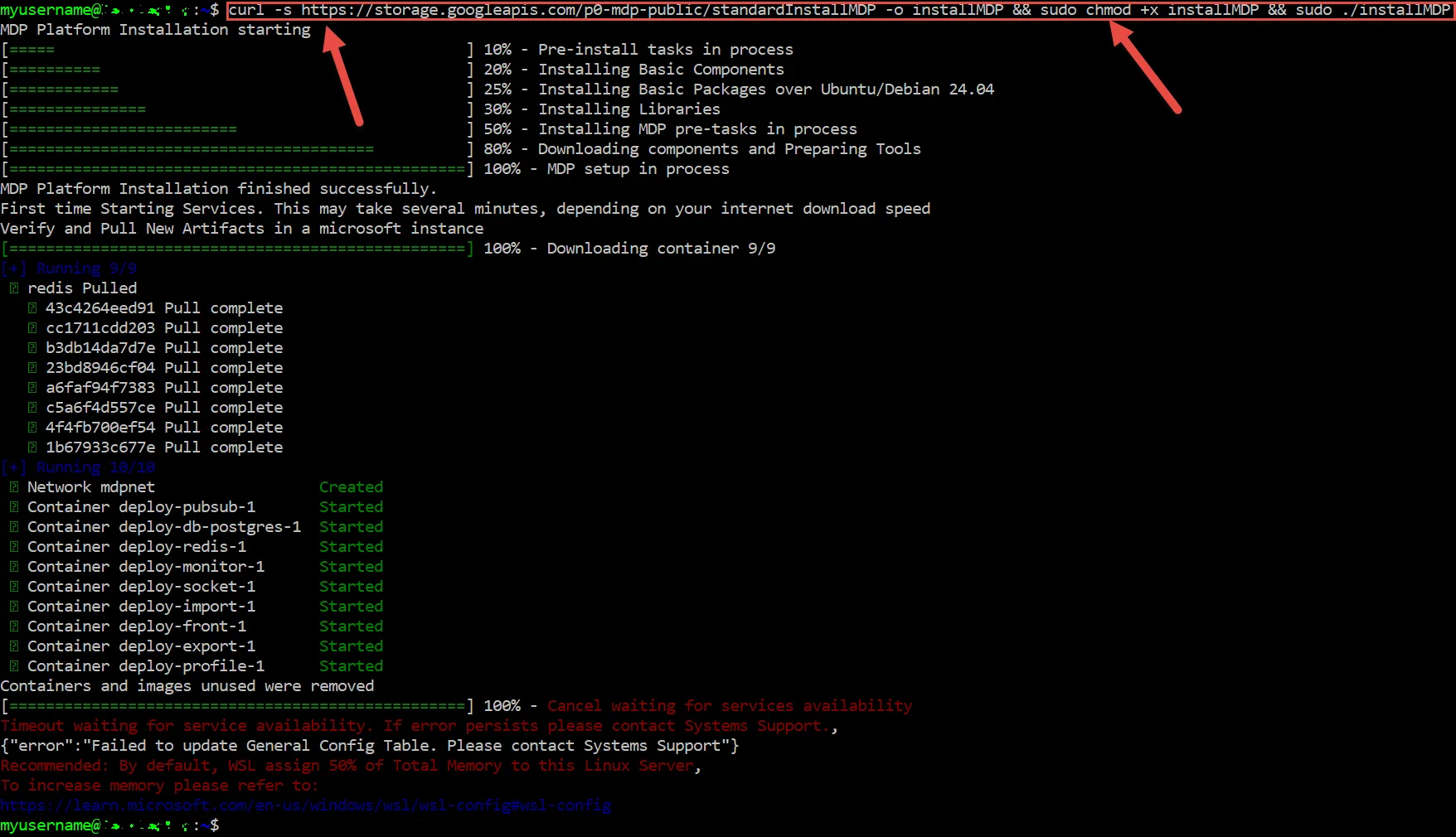
- Download the Match Data Pro On-Prem Package and begin install
curl -s https://storage.googleapis.com/p0-mdp-public/standardInstallMDP -o installMDP && sudo chmod +x installMDP && sudo ./installMDP- This will take several minutes, now is a good time to stretch your legs and not look at a screen for 5 min 🙂

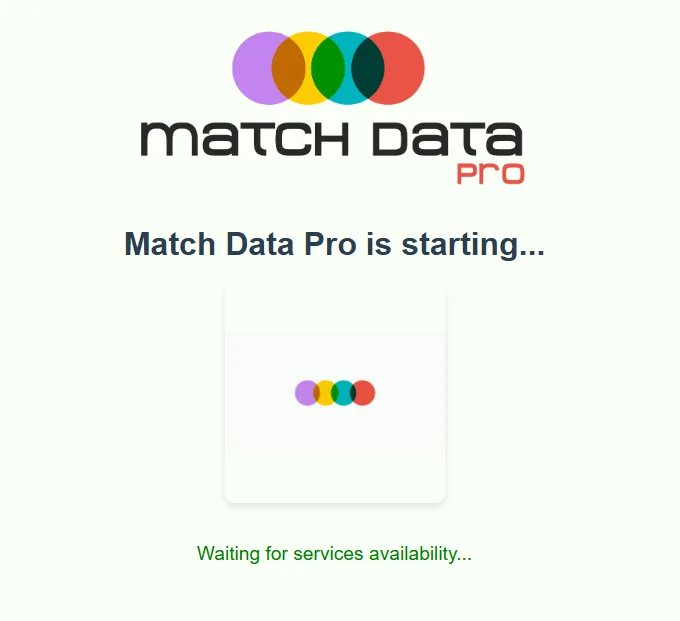
- During this process a new browser tab will automatically popup notifying that the services are coming up.

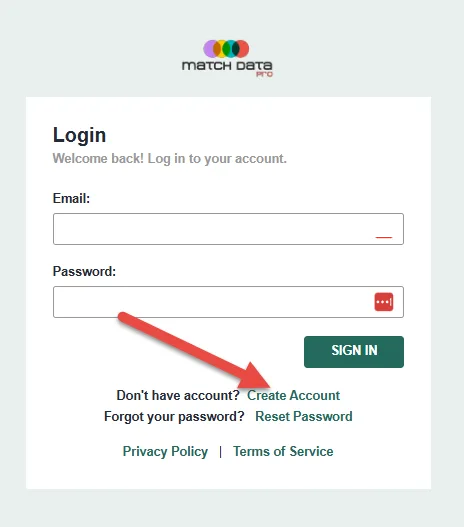
- Once the login screen comes up, the services are up and MDP is ready for use.
- To get started click the Create Account link.

2. Activate A License
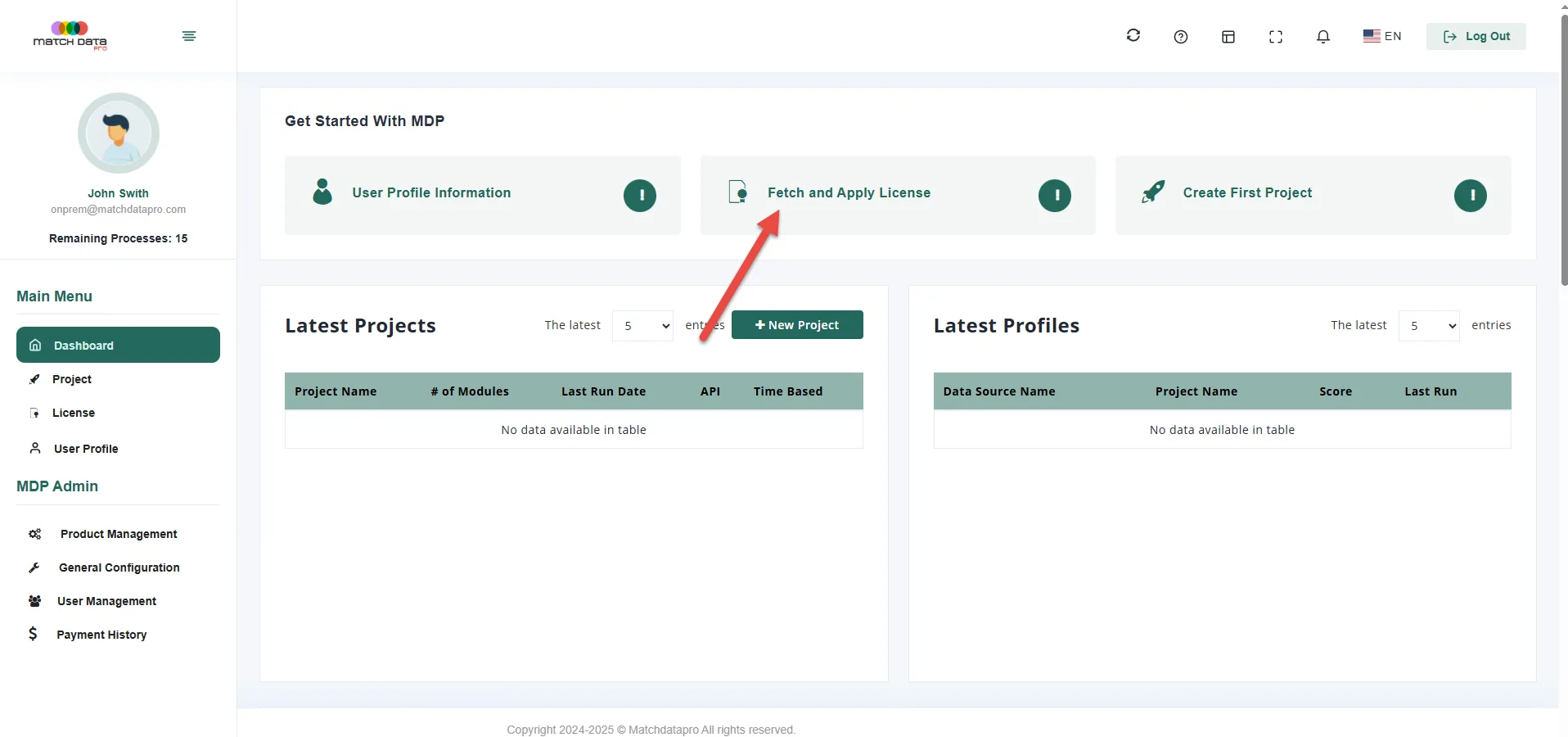
- Once you register and are logged in, simple click the Fetch and Apply License link to activate your license
- If you receive an error when fetching a license, please contact sales@matchdatapro.com for assistance.
Once you have a license applied you may begin to use the tool.

Final Tips
- Need Help?
 Need Help?
 Support:
Congratulations — with Match Data Pro, you’re not just managing data, you’re mastering it
- You’re Ready to Go
- With Match Data Pro running on your own infrastructure, you’re now ready to:
Profile and cleanse your data
Define reusable cleansing rules
Fuzzy match and deduplicate records
Automate batch jobs in a secure, on-premise setup