Fraud Blocker Live Fuzzy Search Documentation

Live Fuzzy Search Documentation

Video Guide

Overview

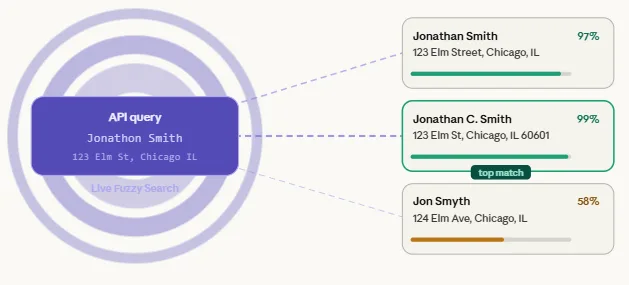
Live Fuzzy Search allows you to search any reference dataset in real time and instantly return the closest matches, even when the input is imperfect. It is designed for any scenario where you need to fuzzy match on the fly โ€” names, clients, vendors, companies, patients, or addresses. One of its most powerful applications is duplicate detection at the point of entry: before a new record is saved to your system, you run it through Live Fuzzy Search and immediately see whether something similar already exists. That is how you prevent duplicates before they start.

Live Fuzzy Search is a standard module in your Match Data Pro workflow. This means it can receive data from any upstream module โ€” you can import data and pass it directly to Live Fuzzy Search, run it through Cleansing first, process it through Entity Resolution, or even expose only the matched or unique records from a prior Match job. You can also add multiple Live Fuzzy Search modules to a single project, one for each dataset you want to search.

Setting Up and Configuring the Module

To add Live Fuzzy Search, open your project workflow, select it from the module list, and click Add. Once added, click Configure to open the configuration panel โ€” you can also reach any module’s configuration from the left-hand menu.
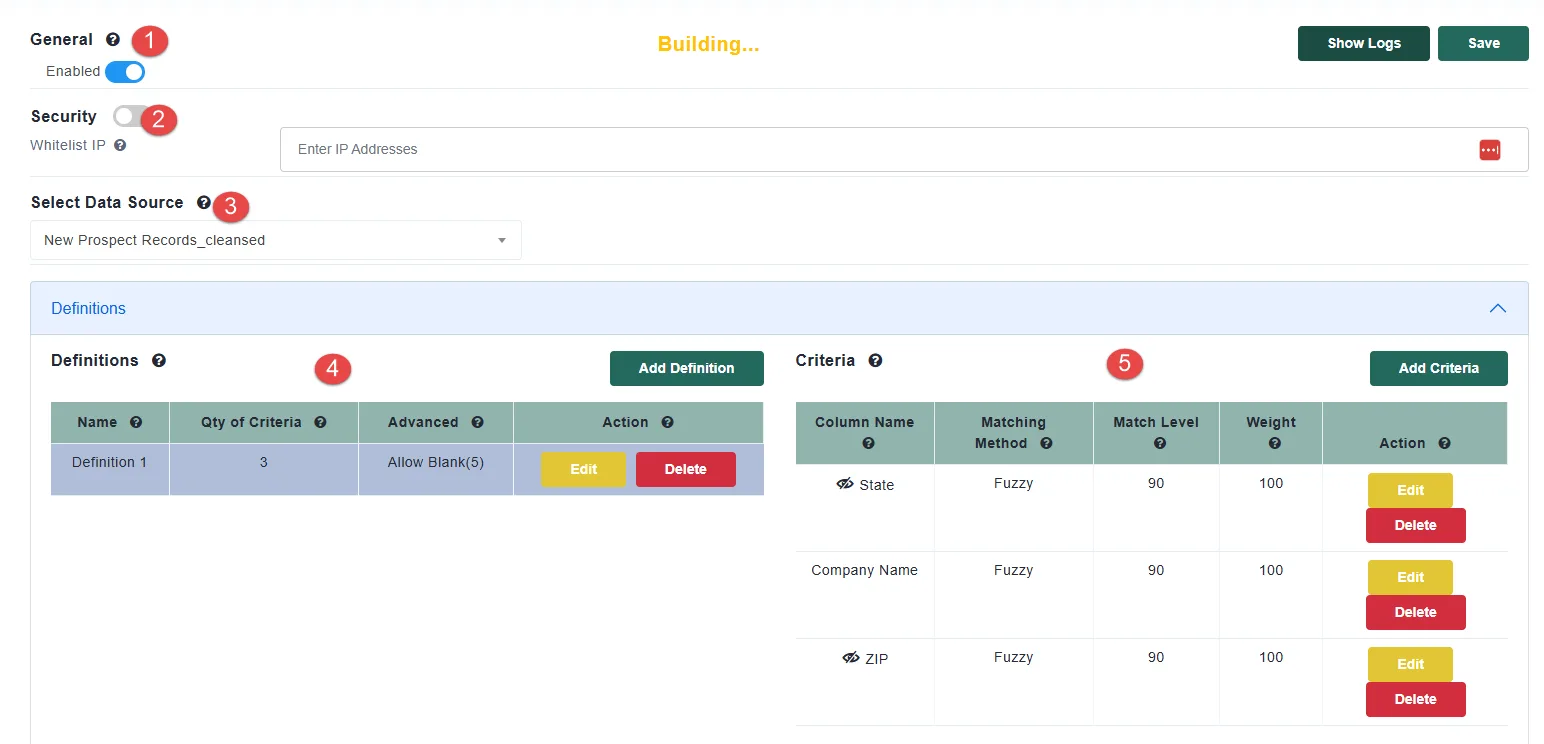
  1. The module begins in a disabled state. Enable it to activate the endpoint.
  2. If you plan to expose Live Fuzzy Search externally or publicly, you can restrict access by entering one or more allowed IP addresses. Any API calls originating from addresses outside that list will be rejected.
  3. Next, select the data source you want to search. This is typically a cleansed dataset that has already been processed upstream. From here, you will define your match definitions and criteria, following the same pattern as standard fuzzy matching in Match Data Pro.
  4. You can add multiple definitions, each with its own set of criteria, and you can allow individual criteria to be blank when a field may not always be present in the incoming record.
  5. For each criterion, you will set whether it is fuzzy or exact. Exact criteria are faster to process, so using more exact criteria where precision allows will help keep response times under one second โ€” which is the target for all Live Fuzzy Search responses.

Cleansing Rules and Address Parsing

Before a search runs, Live Fuzzy Search can normalize the incoming record using cleansing rules. This is useful because your reference data has already been cleansed, and you want the incoming query to be comparable to it.
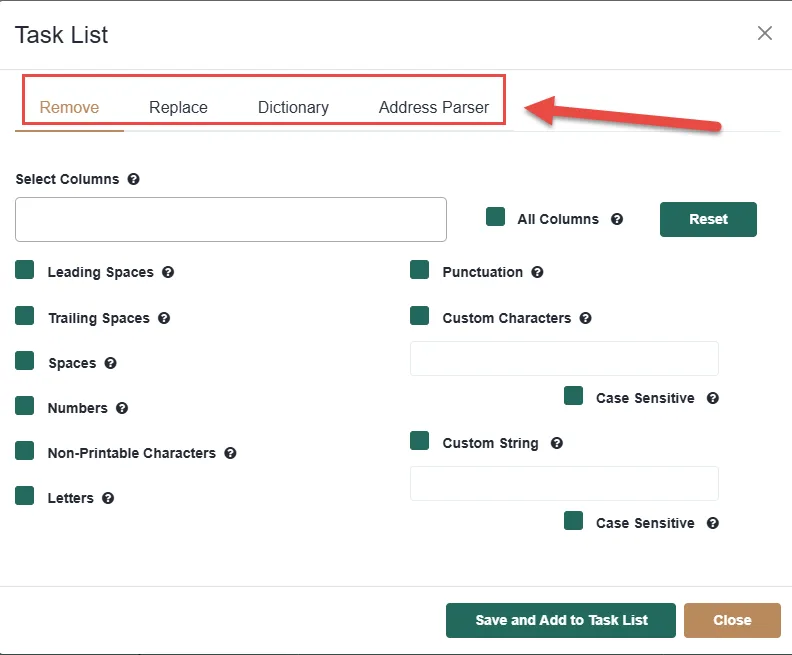
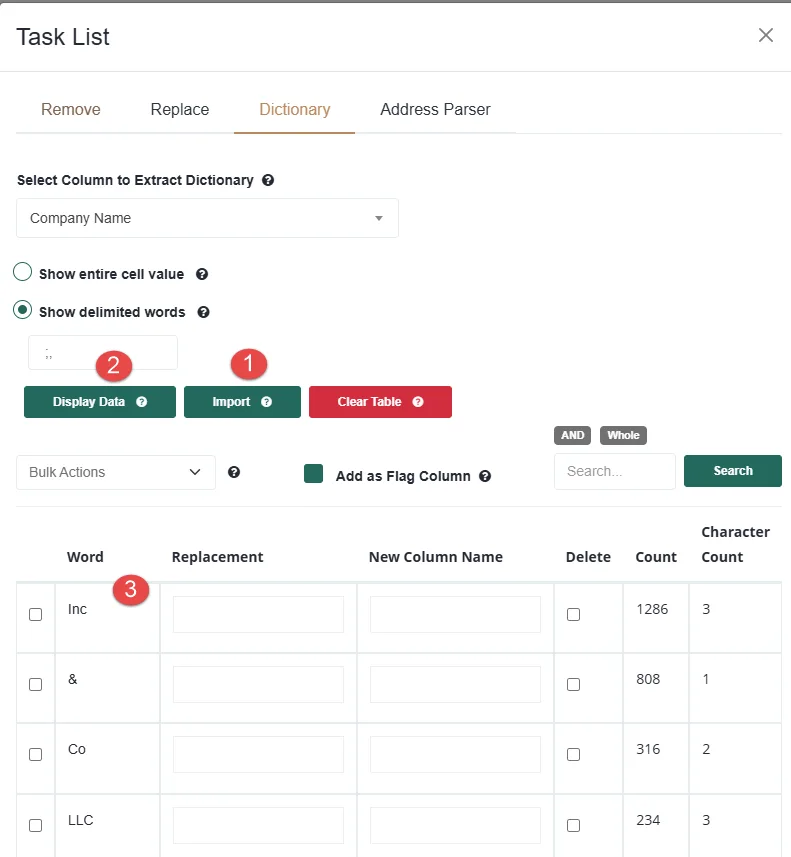
  • Click Add Rule to choose from four rule types: remove characters, replace data, apply a dictionary, or use the address parser.
  1. The dictionary rule is particularly useful for standardizing noisy values.
    1. You can import your own dictionary,
    2. or build one directly from your data source by clicking Display Data.
    3. This tokenizes the dataset and shows you the most frequently occurring values. From there, you can identify noise tokens that hurt matching accuracy and remove or replace them โ€” for example, replacing the ampersand symbol with the word “and” to normalize company names.
  2. For address matching, use the Address Parser rule.
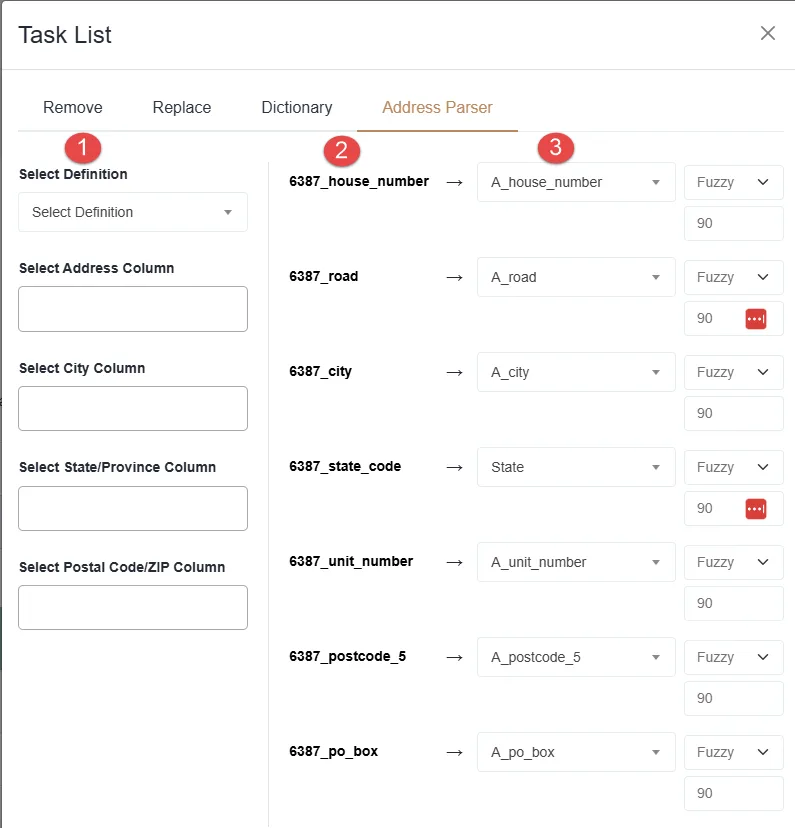
    1. Add your definition and specify your criteria โ€” Address 1, Address 2, City, State, and ZIP.
    2. The parser will automatically map these inputs to their individual address components: house number, road name, city, state code, unit number, ZIP code, and PO box number. Mapping is done automatically using fuzzy logic, but you should review and correct any fields that were mapped incorrectly.
    3. Once mapped, set the match type for each component. House number should be exact. Road or street name should be fuzzy. City should be fuzzy. State code should be exact. Unit number should be exact. ZIP code should be exact. PO box number should be exact.
  3. To manage your rule list, delete any duplicate or unwanted rules by clicking the X next to a rule, or select multiple rules and use the delete button to remove them in bulk.

Response Options and the API Call

The Response Options section controls what Live Fuzzy Search returns when it finds matches. There are three categories.
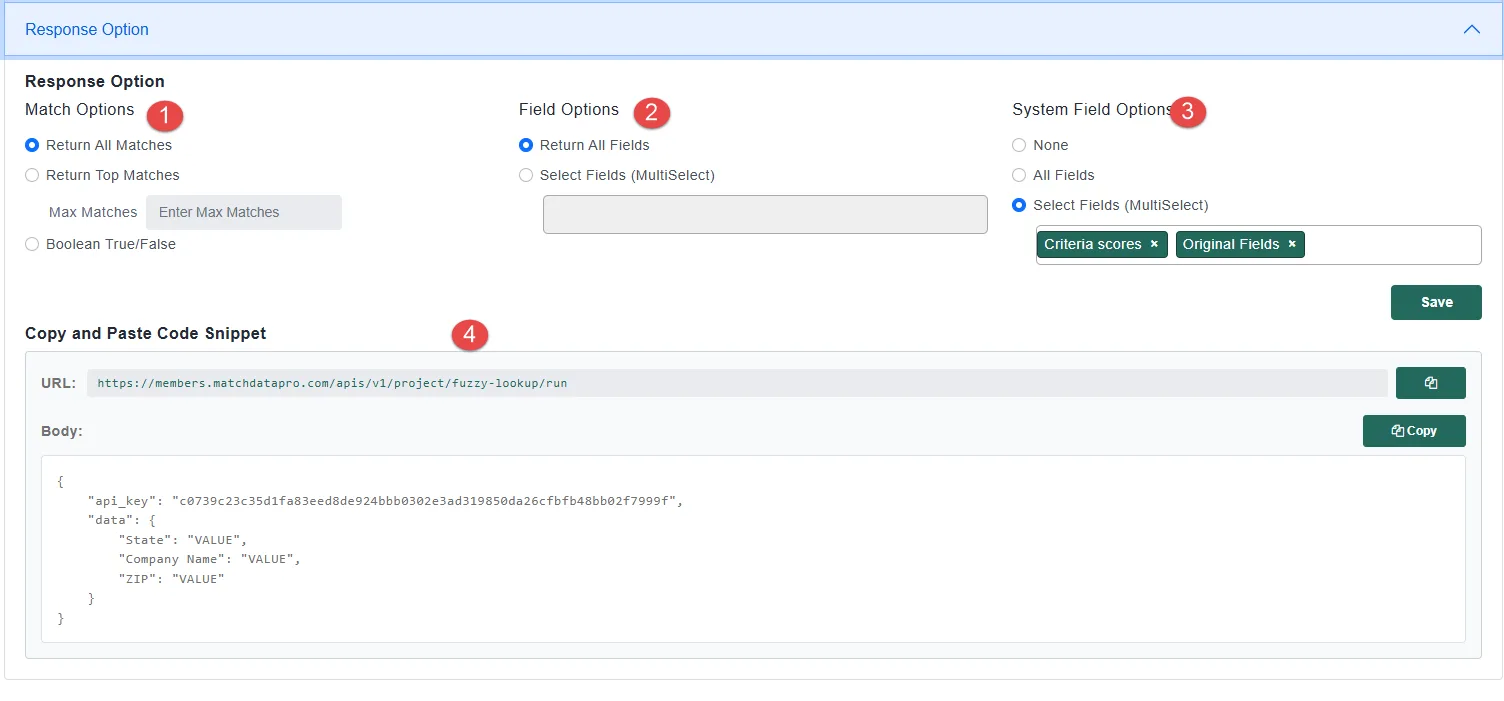
  • Matches
  • Match Columns
  • System Field Options

ย 

  1. Matches
    • The default returns all matches found.
    • Top N Match returns only the highest-scoring results based on the defined quantity..
    • Boolean returns a simple true or false, which is useful when you only need to know whether a duplicate exists โ€” not what it is.
  2. Match Fields
    • Under Field Options, you can choose to return all fields from the matched records,
    • or select only a specific subset of fields.
  3. System Field Options:ย  you can return none, all, or a selection of system-generated fields.
    • Match Definition returns the match defintion integer(s) that correspond to the matched defintion.
    • Criteria Scores returns individual scores for each criterion.
    • Record Number indicates the position of the matched record within the dataset.
    • Data Source Name identifies which data source the match came from.
    • Original Fields returns the values you submitted in the API call.
  4. Once your response options are configured, the complete API call is generated for you automatically when you click save. The panel displays the endpoint URL and the full call structure, which you copy and paste into your application. You will dynamically replace the placeholder values with your own data at runtime.

Saving, Data Build, and Logs

  • When you click Save, Live Fuzzy Search begins loading the selected data source into memory. This in-memory index is what makes it possible to search millions of records in under one second.
  • Importantly, if you are updating an existing Live Fuzzy Search configuration, there is no downtime during the rebuild. While the new data is loading, the current data continues to serve requests. Once the new index is fully loaded, the switchover happens in under one millisecond. You can refresh your data as often as needed without interrupting the API.
  • To review historical activity, open the Logs panel. It shows a complete record of every API call that has been made, as well as every time the data has been refreshed. This is useful for monitoring usage, troubleshooting issues, and confirming that data rebuilds have completed successfully.

FAQs

Any reference dataset that exists as a data source in your Match Data Pro project. Common use cases include customer names, company names, vendor records, patient records, and addresses. If you can import it into MDP, you can expose it through Live Fuzzy Search.

Responses are designed to return in under one second. The exact speed depends on the size of your dataset and how many exact versus fuzzy criteria your configuration uses. Exact criteria process faster than fuzzy criteria, so using exact matching where precision allows will help keep response times as low as possible.

You can, but it is not recommended. Live Fuzzy Search is designed to search a cleansed reference dataset. The cleansing rules built into the module are intended to normalize incoming query records so they are comparable to your already-cleansed data source โ€” not to replace a full cleansing pipeline on the reference data itself.

All matches returns every record that meets your match criteria, ranked by score. Top 1 returns only the single highest-scoring match. Boolean returns true if any match exists and false if none does. Use Boolean when you only need duplicate detection and do not need to know which record matched.

Yes. You can enter one or more allowed IP addresses in the configuration. Any API call originating from an address not on that list will be blocked. If you leave the IP allowlist empty, the endpoint is open to any caller who has the URL.

Nothing is interrupted. While the new data loads into memory, the current data continues to serve requests normally. Once the new index is fully built, the switchover happens in under one millisecond. There is no downtime and no gap in availability.

Yes. Match Data Pro allows multiple instances of the same module type within a single project. You can add one Live Fuzzy Search per dataset, each with its own configuration and endpoint.


Standard criteria matching compares full address strings. The Address Parser breaks an address down into its individual components โ€” house number, road name, city, state code, unit number, ZIP code, and PO box โ€” and matches each component independently, with its own fuzzy or exact setting. This produces more accurate address matching, particularly when addresses contain abbreviations, missing unit numbers, or minor formatting differences.

Criteria Scores return the individual match score for each criterion in your definition, rather than just the overall definition score. This is useful when you want to understand exactly which fields drove a match or near-miss โ€” for example, if a name matched at 98% but the address only matched at 60%.

Yes. When Original Fields is enabled, the API response echoes back the exact values you submitted in the query. This is helpful for logging, debugging, and confirming that your application is sending the expected input.

Start Your First Project

To begin, click the New Project button from the dashboard.