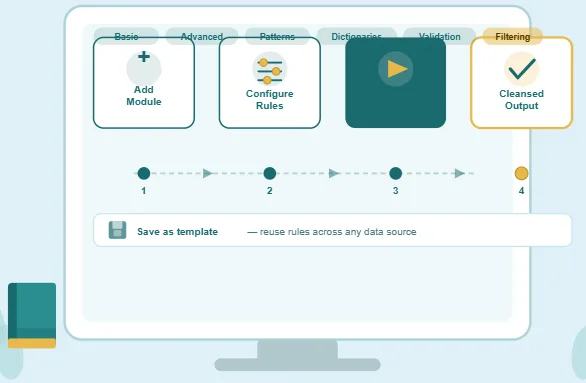
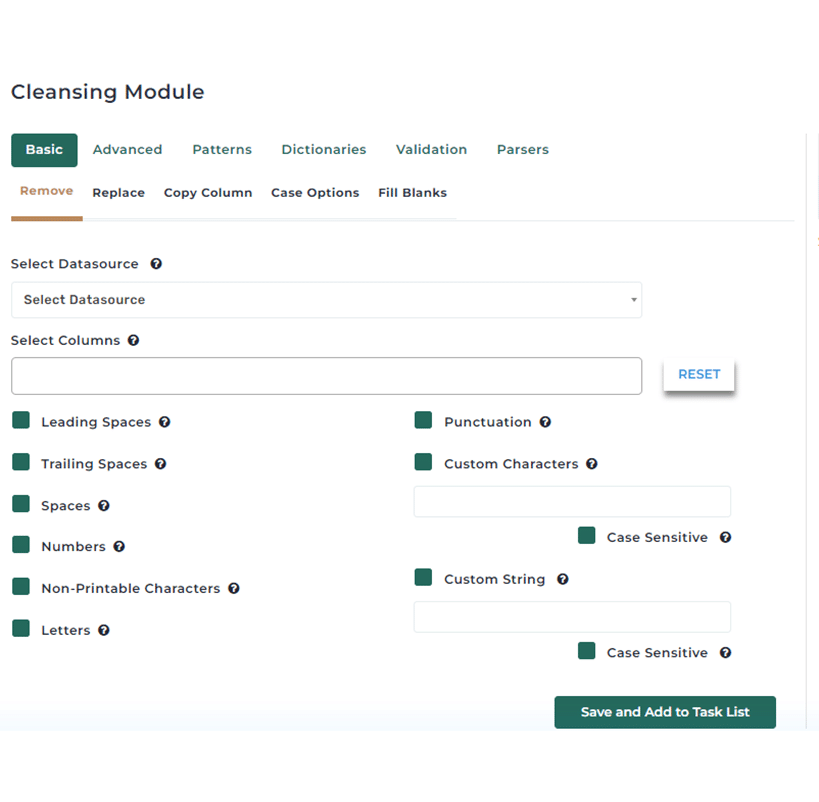
The Cleansing & Standardization module in Match Data Pro is designed to help you prepare your data for high confidence matching using smart cleansing, standardization, and normalization rules. To get started, add the cleansing module to your project and click the Configure button. On the configuration page you will find six cleansing categories, each containing a variety of cleansing options. For most options, you begin by selecting a data source followed by one or more columns — if the option supports multiple column selection, simply hold the Control key and select several columns at once.
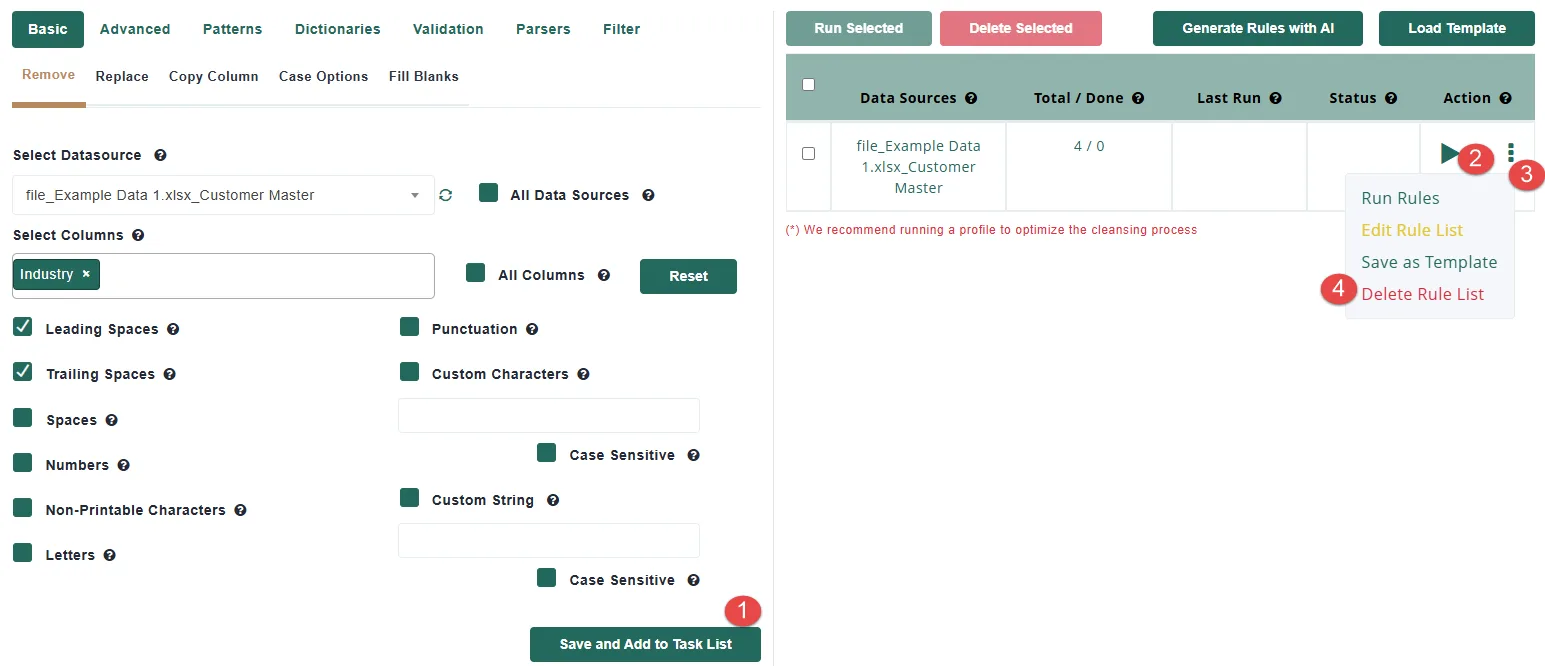
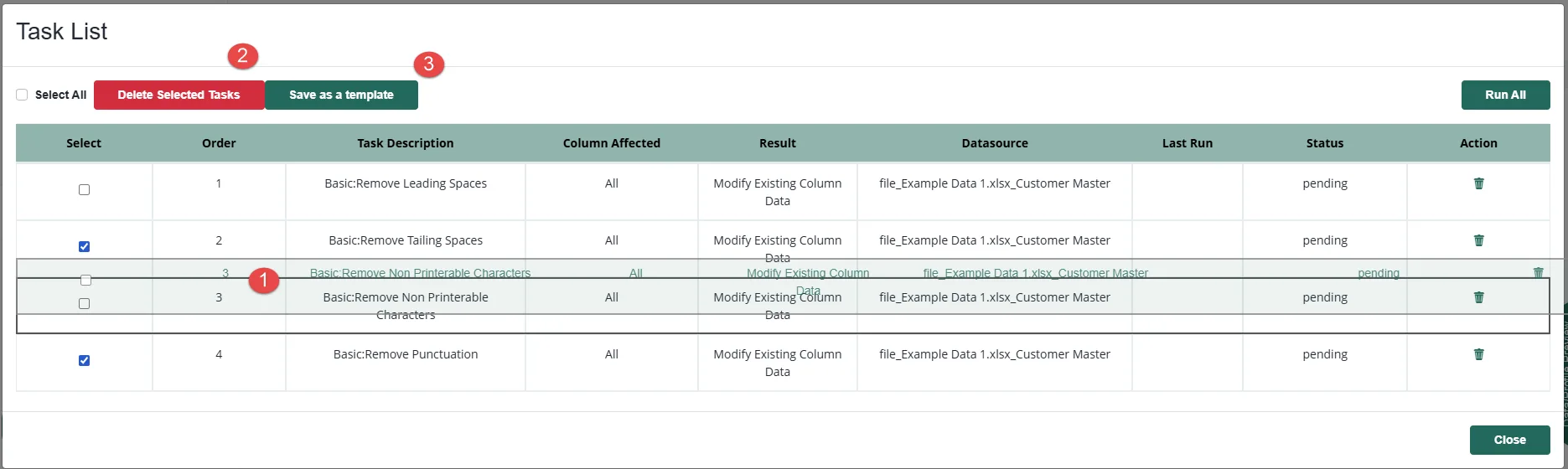
Once you have configured your desired cleansing rules, click Save to add them to the rule list on the right side of the page. From there, click Run Rules to start the cleansing process. The menu gives you quick access to the following options:
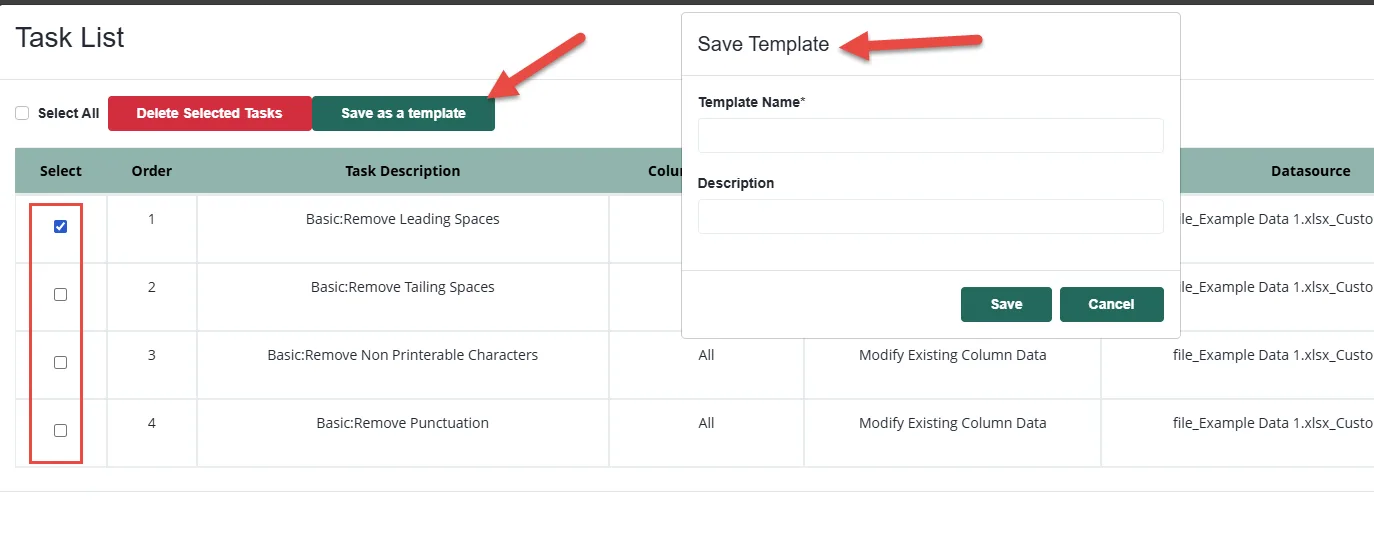
The Save Template option allows you to save your entire or partial rule set under a name and description for use with other data sources in the future. Saving and loading a saved template is just as straightforward:
The Edit Rule Set option gives you a full view of all the rules added to your data source. From here you can:
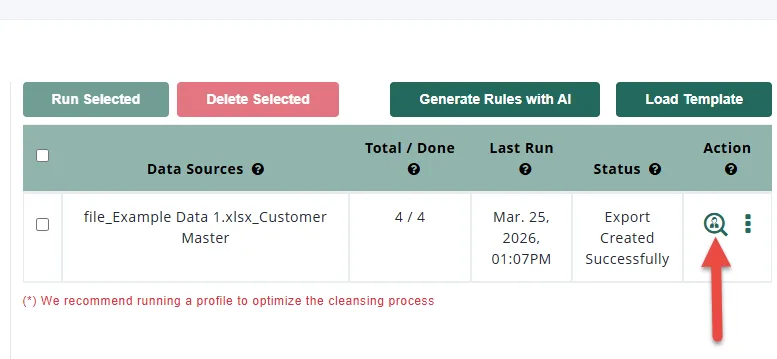
Once your rules have finished running, you will have the option to preview records to confirm that everything has been applied correctly. Match Data Pro automatically creates a new data source named after your original file with an underscore cleansed suffix added to the end. This cleansed data source is immediately available for:
Yes. The Cleansing & Standardization module needs to be added to each project individually. Once added, simply click the Configure button to access all six cleansing categories and begin building your rule set for that project.
Yes. Many cleansing options in Match Data Pro support multiple column selection. Simply hold the Control key on your keyboard while clicking to select several columns at once, and the rule will be applied across all selected columns when run.
The Save Template option on the main page saves your entire rule set as a template. The Save Template option inside Edit Rule Set allows you to select only specific rules and save those as a template, giving you more granular control over what gets reused in other projects or data sources.
No. When you load a template, Match Data Pro adds the template rules to your rule list and automatically performs fuzzy column mapping to align the template with your new data source. You can also manually adjust any column mappings before clicking Load if the automatic mapping needs refinement.
Your original data source is never modified. Match Data Pro creates a brand new data source named after your original file with an underscore cleansed suffix added to the end. This cleansed data source is then available for matching, profiling, additional cleansing rounds, or exporting, leaving your original data fully intact.
Sí. Encontrará una guía en vídeo en la parte superior de la página de documentación sobre limpieza de datos, que ayuda a los usuarios a ver exactamente cómo configurar, aplicar y probar las reglas de limpieza.
Sí. La documentación incluye una sección "Iniciar proyecto" para guiar a los usuarios a través de los flujos de trabajo de configuración, y una sección específica de preguntas frecuentes para obtener respuestas rápidas a las dudas más comunes.
Puede comunicarse con el equipo de soporte de Match Data Pro a través de la función de chat en vivo en la plataforma o enviando un correo electrónico a support@matchdatapro.com .
Para comenzar, haga clic en el botón Nuevo proyecto desde el panel de control.
En Match Data Pro, nuestro enfoque principal es la coincidencia de datos difusos y la resolución de entidades, pero nuestra plataforma va mucho más allá de eso.
Copyright 2026 Match Data Pro. All Rights Reserved