
Entity resolution answers a question ordinary matching cannot: which records, across all of your data sources, describe the same real-world person or organization? Senzing resolves those records into entities, gives each one an Entity ID, and tells you why it made every decision.
The difference from the Fuzzy Matching module is how much you configure. Fuzzy Matching gives you full control over definitions, criteria and thresholds. Senzing is hands-off: you map your columns to Senzing attributes, pick your data sources, and Senzing decides what resolves together using its own algorithms.
What you get back:
Senzing sits in your project alongside every other module, so you can import, cleanse and parse first, resolve second, then export the result or pass it downstream.
Open Senzing from your project workflow, or from Senzing Entity Resolution then Mapping in the left menu. The screen opens on step 1 of 2.
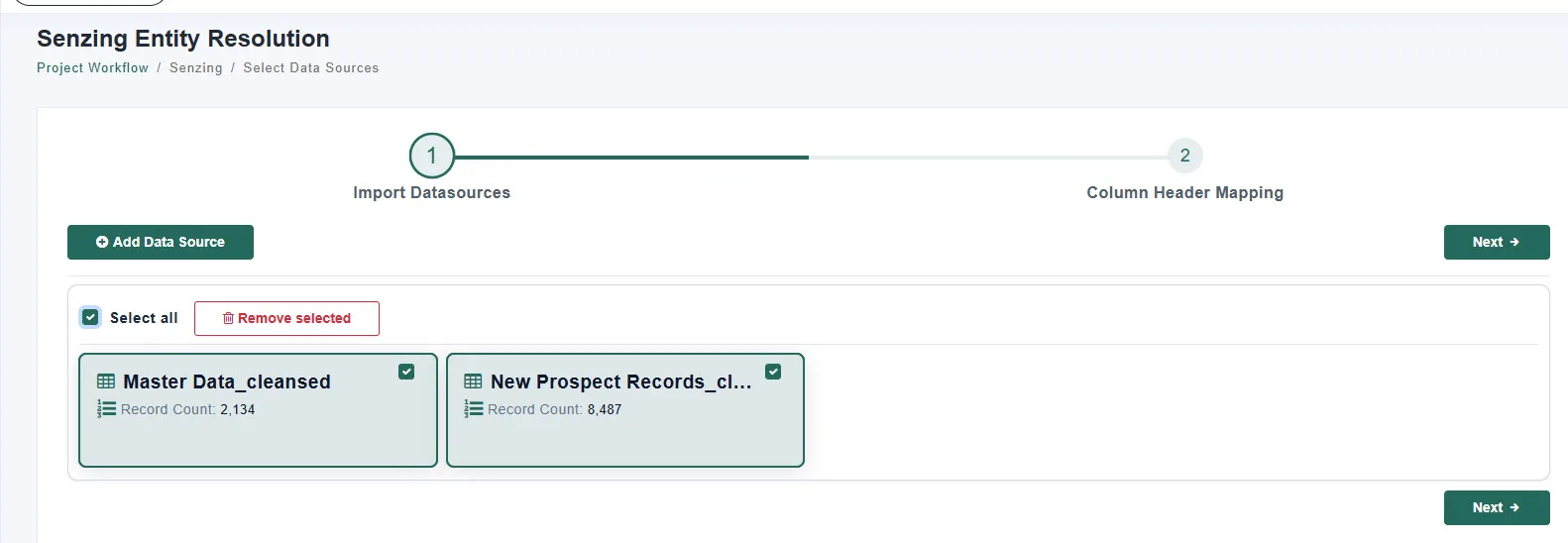
Each data source appears as a card showing its name and Record Count. Tick the ones you want to resolve.
Select one data source to find duplicates inside it, or several to resolve records across them. Each must have finished importing first.
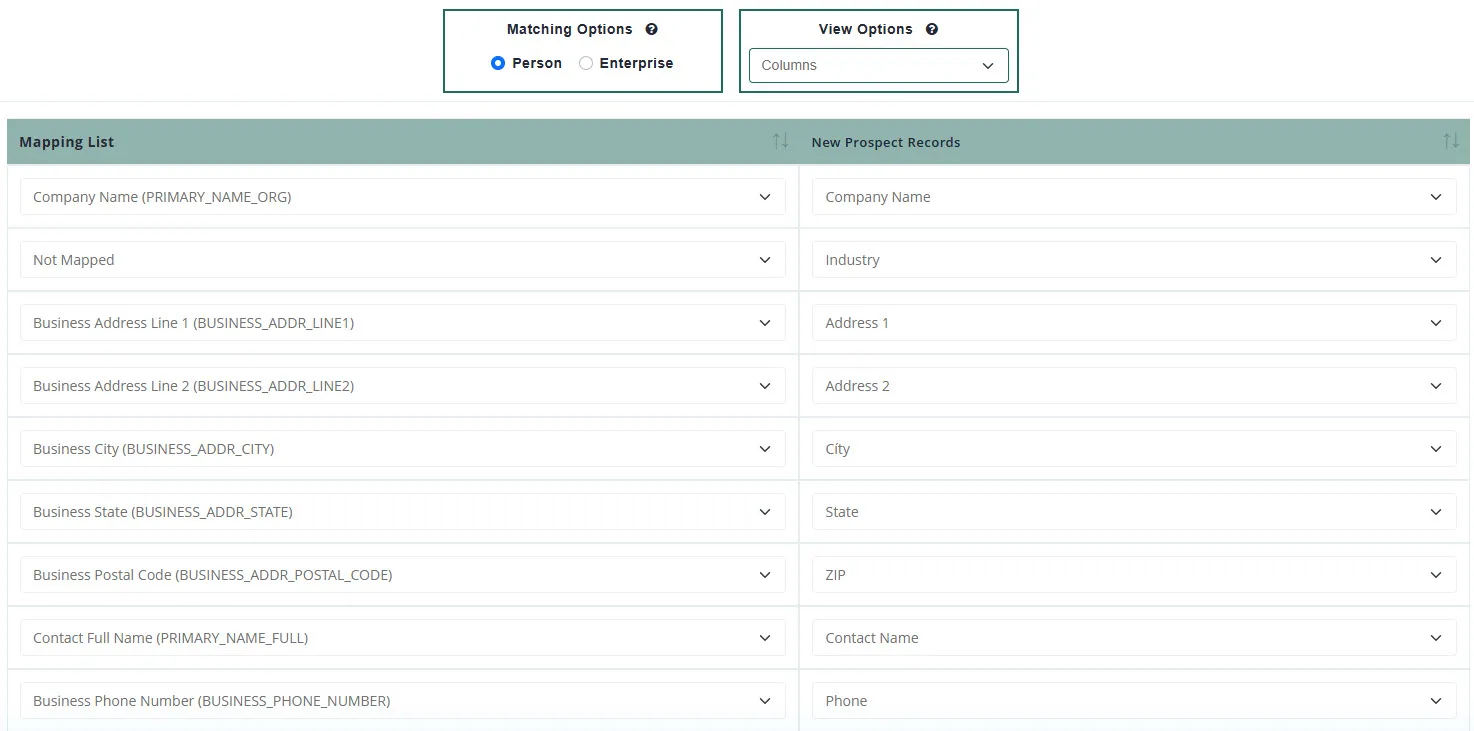
Senzing needs to know what each column means. Mapping tells it that your “Contact Name” column is a full name and your “DOB” column is a date of birth.
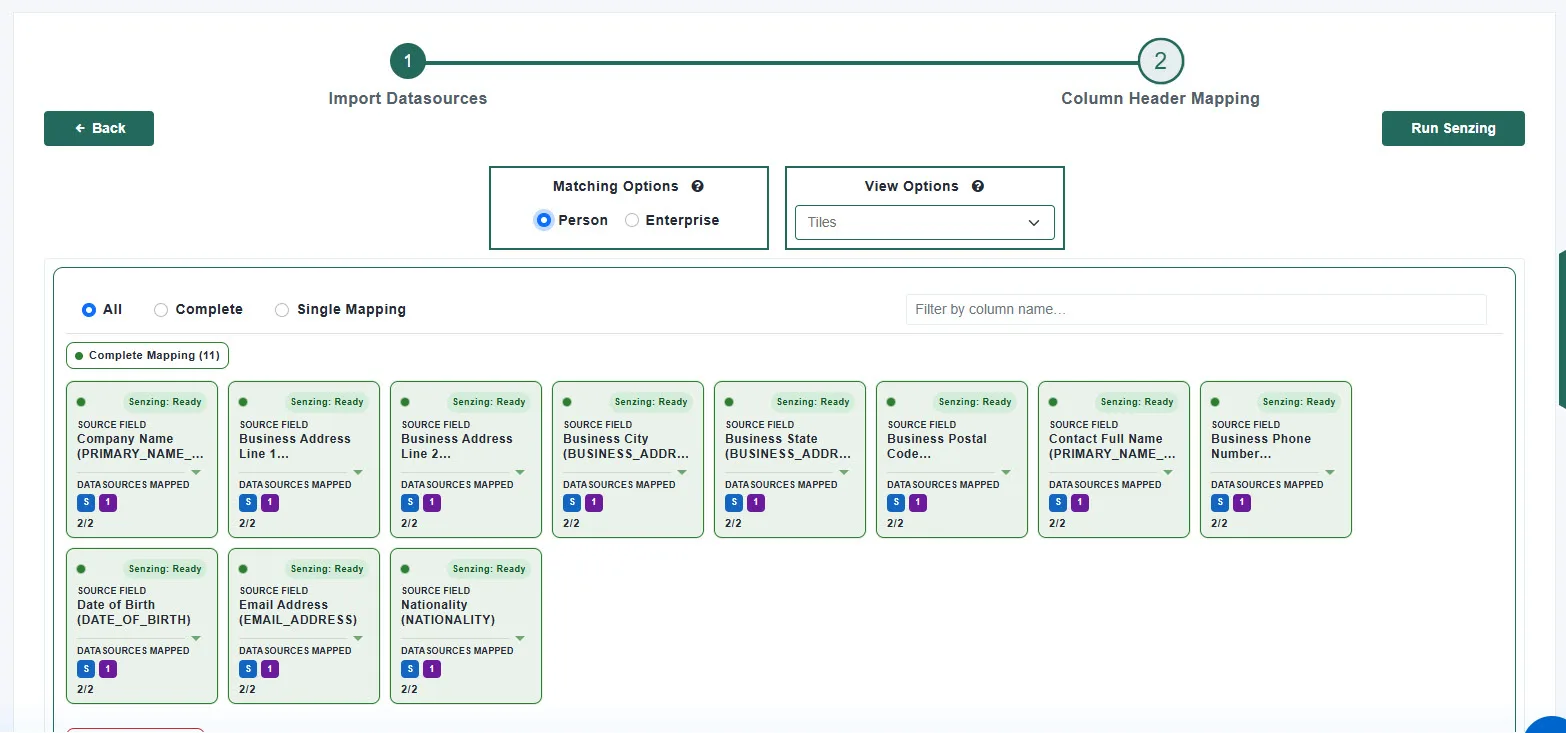
Choose Person to match people or Enterprise to match companies. Your choice changes which Senzing attributes are offered, so set it before you start mapping. Person is the default.
A dropdown gives you three ways to work through the board:
Radio filters narrow the board, and a filter appears only when there are columns in that group:
| Filter | Shows |
|---|---|
| All | Every column |
| Complete | Mapped to a Senzing attribute and present in every selected data source |
| Partial | Mapped to a Senzing attribute but missing from at least one data source |
| Other Mappings | Present in more than one data source but not yet mapped |
| Single Mapping | Present in only one data source and not yet mapped |
Each group is labelled with its count, such as Complete Mapping (11). Use the Filter by column name box to jump to a specific column.
Match Data Pro proposes mappings by matching your headers against a dictionary of known names plus any you have chosen to remember. After mapping a header by hand, choose Remember so it maps automatically next time. Forget removes it.
At minimum, map what identifies the entity: a name, then whatever else you have such as address, date of birth, phone, email or an identifier. The more identifying attributes you map, the better Senzing resolves. Unmapped columns are carried through but are not used for matching.
Click Run Senzing, at the top right of the mapping step.
Senzing loads the mapped records, resolves them and writes a result you can review. Processing runs in the background, so you can leave the page and come back. Time depends on the record count and the number of data sources.
Senzing Entity Resolution then Senzing History lists every run under the heading Senzing Result, with Processed Data Sources, Started Date, Ended Date, Status and Actions.
Available actions:
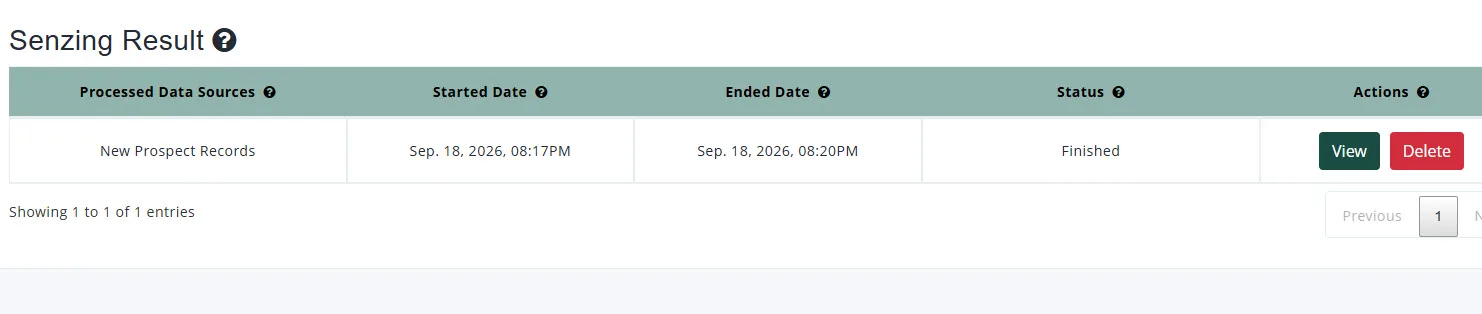
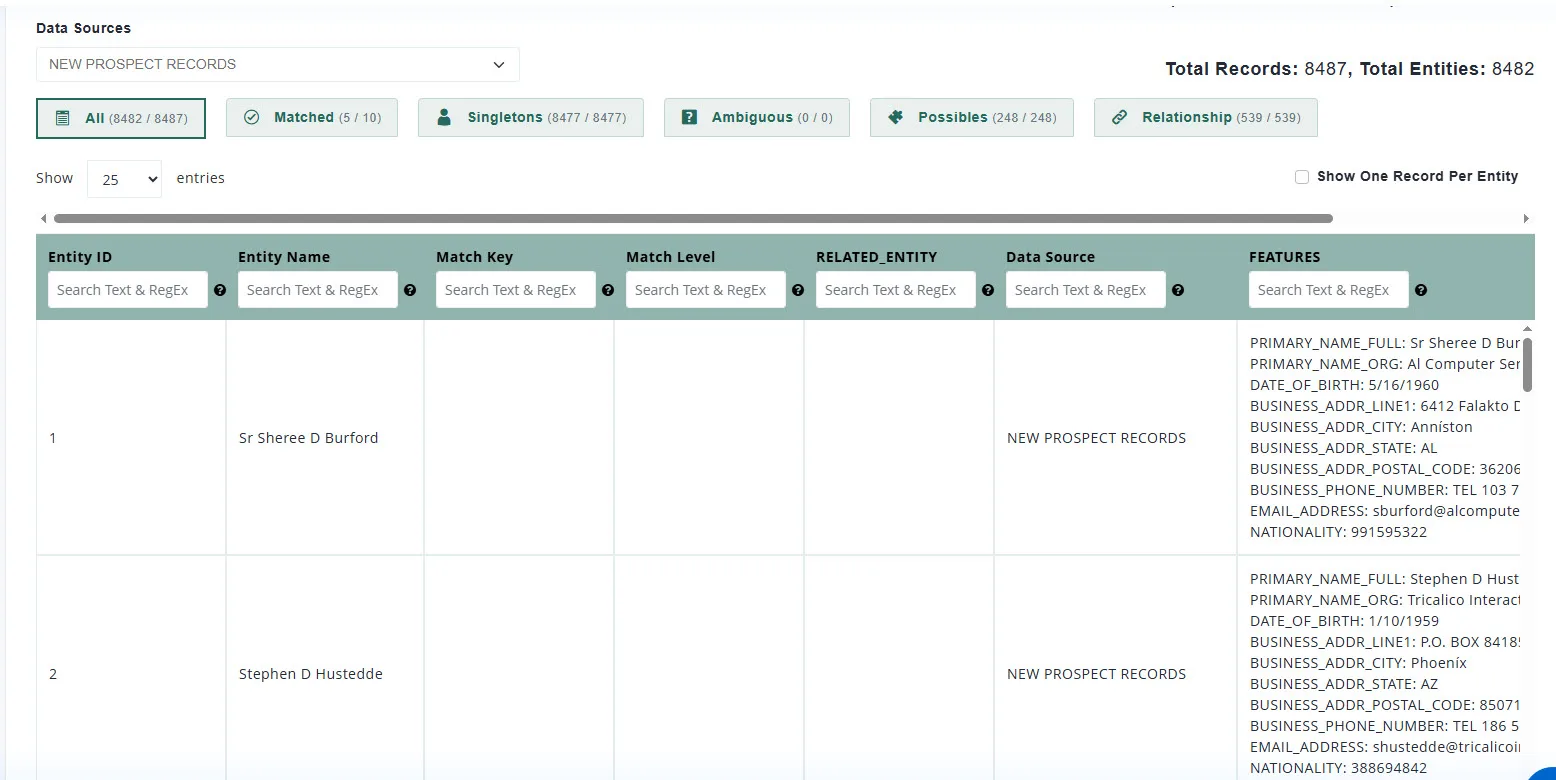
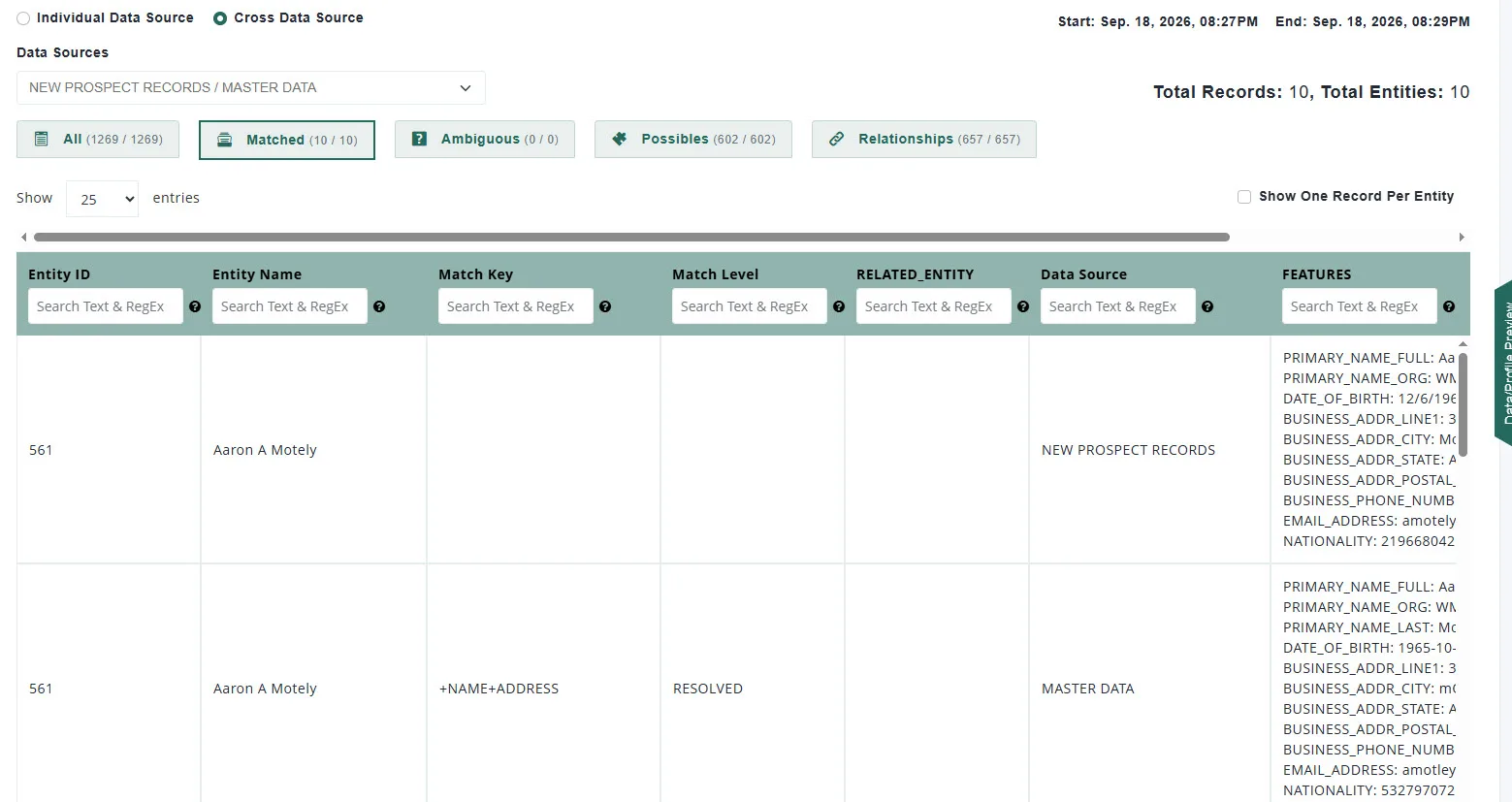
Click View on a finished run, then choose how to look at it with the two radios at the top:
Pick the data source, or the pair, from the Data Sources dropdown. Total Records and Total Entities for that selection are shown on the right.
Each tab carries a live count:
| Tab | Meaning | Appears in |
|---|---|---|
| All | Every entity in the selection | Both views |
| Matched | Records Senzing resolved together as one entity | Both |
| Singletons | Records that resolved to an entity of exactly one record, meaning nothing matched them | Individual only |
| Ambiguous | An entity that could resolve to more than one entity, where those entities cannot resolve to each other | Both |
| Possibles | Two entities that share high-strength attributes but still cannot resolve together | Both |
| Relationship | Entities that are not the same but are connected, such as a shared address | Both |
Ambiguous and Possibles are worth understanding, because they are where the interesting edge cases live.
An ambiguous match happens when a record could resolve to more than one entity, and those entities cannot resolve to each other. Say you have a Patrick Smith and a Patricia Smith at the same address. If a Pat Smith then arrives at that same address, it could be either one. Since it cannot be known which, it is held apart as ambiguous to both.
A possible match happens when two entities share high-strength attributes, such as an identifier, yet still cannot be resolved together because of other differences. If the same Patrick and Patricia records carried the same driver’s licence number, they would be a possible match to each other. If they were married, one person’s ID may simply have been put on the other’s account by mistake.
| Column | Contents |
|---|---|
| Entity ID | The identifier Senzing assigned to the resolved entity |
| Entity Name | The name Senzing chose to represent the entity |
| Match Key | Which attributes drove the match, for example +NAME+ADDRESS |
| Match Level | How the record relates to the entity, for example RESOLVED |
| RELATED_ENTITY | The other entity, on a relationship row |
| Data Source | Which data source the record came from |
| FEATURES | Every attribute value Senzing used for that record, listed by attribute name |
Records belonging to the same entity share an Entity ID and sit together. The first record acts as the anchor and has no Match Key. Each further record shows the Match Key and Match Level explaining how it joined.
Every column has a search box taking plain text or a regular expression. Show One Record Per Entity collapses each entity to a single row on screen, which turns the view into a deduplicated list. It changes the view only and does not affect what an export contains.
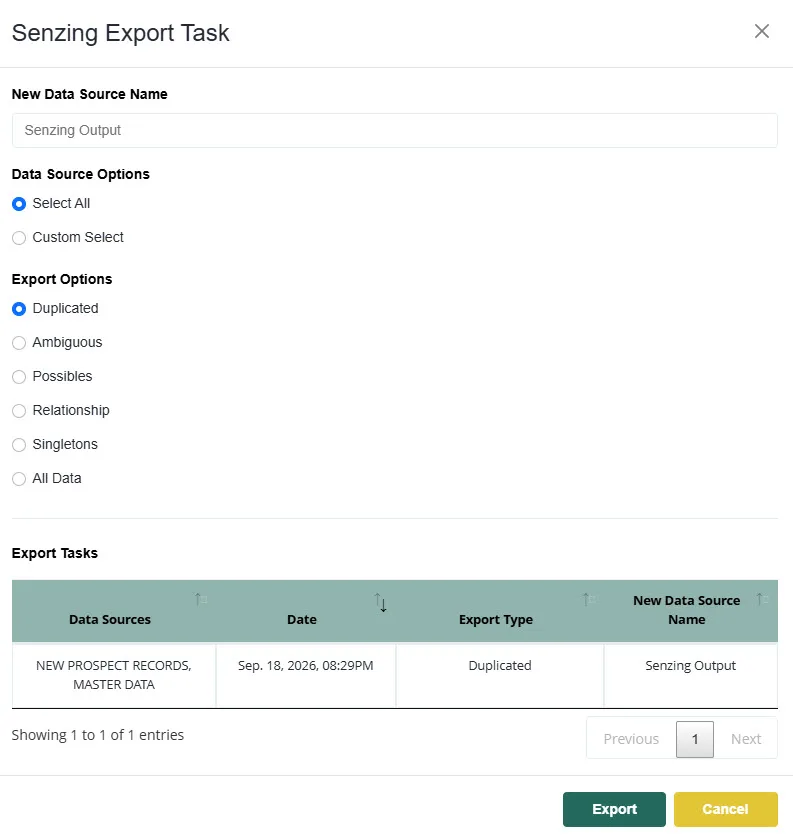
Results are not only for reviewing. Turn any category into a new data source in your project, ready to export or feed another module.
Open Senzing Export Task and set:
Click Export. Each request is listed in the Export Tasks table with its data sources, date, export type and new data source name.
Fuzzy Matching is configurable: you define match definitions, criteria and how strict each one is. Senzing is hands-off: you map your columns and it decides what resolves, using its own algorithms. Use Fuzzy Matching when you want control, Senzing when you want entity resolution without tuning.
Person matches people. Enterprise matches companies. The choice changes which Senzing attributes are available when you map your columns.
No. Your imported data sources are untouched. Results live in the Senzing run, and anything you export becomes a new data source.
Yes. Select a single data source and use the Individual Data Source view to find duplicates within it.
It names the attributes that drove the decision, so +NAME+ADDRESS means name and address together resolved those records.
A record that ended up as an entity of one, meaning nothing else in your data resolved to it.
That record is the anchor of its entity. The Match Key appears on the records that joined it.
An ambiguous match is a record that could belong to more than one entity, where those entities cannot resolve to each other, such as a Pat Smith who could be either Patrick or Patricia Smith at the same address. A possible match is two entities that share a high-strength attribute such as an identifier but cannot resolve together because of other differences.
Yes. Senzing can be automated as part of Match Data Pro automation, so a configured project resolves on a schedule or on demand without anyone opening the module.
Run a Senzing Export Task for the category you want, which creates a new data source, then use Data Export or pass it to another module.
Para comenzar, haga clic en el botón Nuevo proyecto desde el panel de control.
En Match Data Pro, nuestro enfoque principal es la coincidencia de datos difusos y la resolución de entidades, pero nuestra plataforma va mucho más allá de eso.
Copyright 2026 Match Data Pro. All Rights Reserved
